
Marketing Cloud: SMS Marketing App Configuration and Workflow Guide
This document provides a comprehensive guide to the SMS Marketing App in CloudOffix, detailing its menu items, critical fields, and an example workflow for creating a SMS marketing.
For more information about configuring Marketing Cloud please refer to the Marketing Cloud General Settings Configuration Guide: [ Marketing Cloud General Settings Configuration Guide ]
Below are the primary menu items and their functions.
Note: SMS sending is not a service provided directly by CloudOffix. CloudOffix offers regional integrations with third-party SMS providers (depending on your country/region).
You purchase your SMS credits/package directly from the provider you will be using. CloudOffix acts solely as the user-friendly interface:
You design, personalize (with placeholders), segment, schedule, and launch your SMS campaigns entirely within CloudOffix.
CloudOffix handles the routing and delivery by passing your designed messages to the integrated provider.
The actual sending is performed by the provider using your purchased credits.
You control the content and strategy through CloudOffix’s powerful tools — CloudOffix makes sure it reaches recipients via the provider you choose.
Please contact your CloudOffix account manager / support team for available providers in your region and integration setup.
Note: The SMS Marketing app is not a standard, self-installable module. It requires CloudOffix assistance for installation. Users cannot install it independently. If you would like to enable SMS Marketing, please contact your CloudOffix account manager or support team for assistance.
1. Menu Items
1.1 SMS Marketing:
Purpose: Create, manage, and send bulk or targeted SMS messages (promotions, reminders, alerts, confirmations).
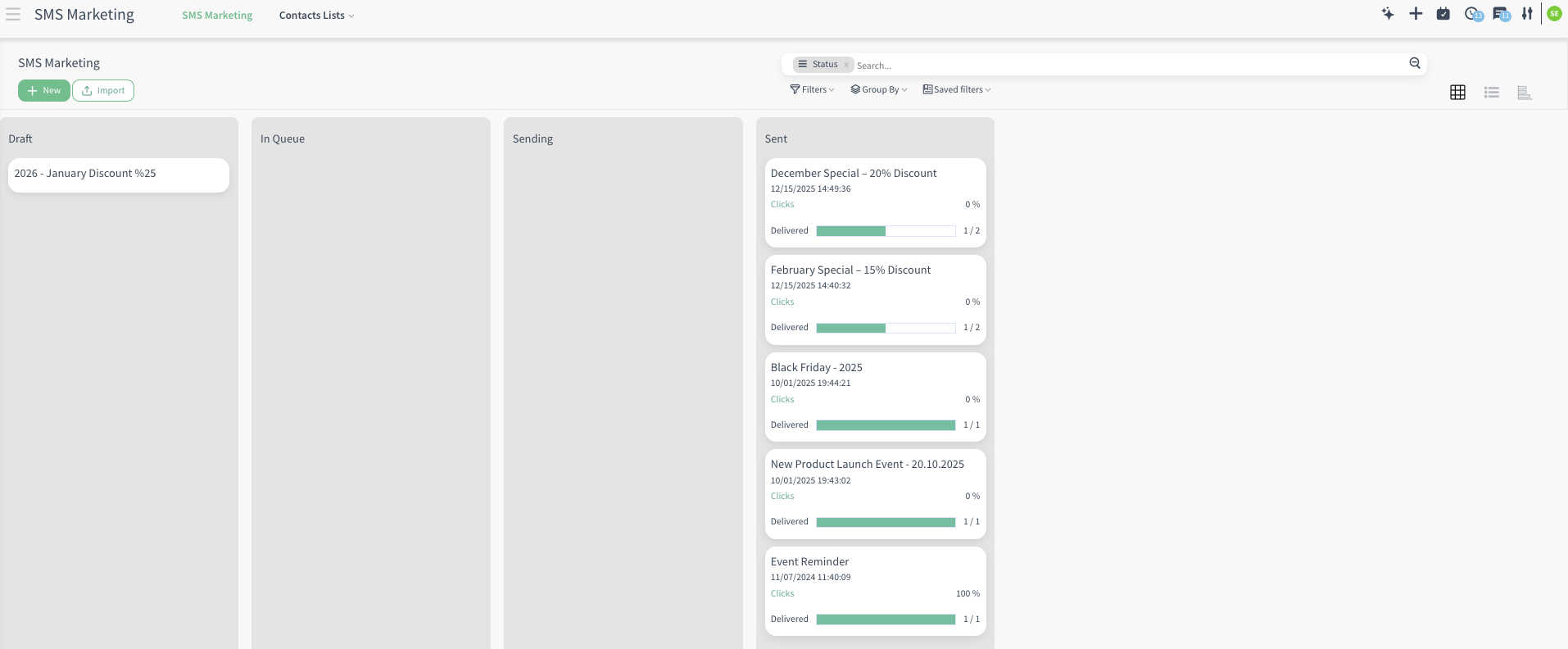
Functionality Kanban, list, and graph views to track SMS campaigns by status (Draft → In Queue → Sending → Sent) with real-time statistics (e.g., delivered, clicks (for the link(s) inside of the SMS)).
1.2 Contacts Lists:
Purpose: Group contacts for targeted campaigns (e.g., VIP customers mailing list).
-
Functionality: You can add contacts manually, import them.
Different from Contacts app’s contacts. The contact you add does not have to have a contact record inside the Contacts app. Only email is enough. However, you have the option to link it to a contact record (Partner field).
For example, this is ideal for purchased lists.
Once created, when sending a SMS marketing, you simply select this list as the recipient group → your SMS goes directly to everyone in it (Recipients > Mailing List).
Example: Create a ‘VIP Customers’ list → add all high-value contacts → send exclusive offers to just them without sending SMS to everyone else.
* Note: If you are also using Email Marketing, the mailing lists (like contact lists) you have created there will be also listed in the SMS Marketing app > Contacts Lists > Contacts lists and vice versa.
1.3 Contacts:
-
Purpose: Individual recipients (people) that belong to the contact list or the ones that are created from here (SMS Marketing app > Contacts List > Contacts)
It does not display your contacts from the Contacts app. It only displays the ones you have created inside of this model.
-
Functionality: You can manually create or export contacts. You can use filters and group by to search quickly and effortlessly (e.g., filter by contact list, country, company name).
2. Critical Fields
The following fields are critical for effective SMS Marketing setup:
2.1 Critical Fields - SMS Marketing Creation
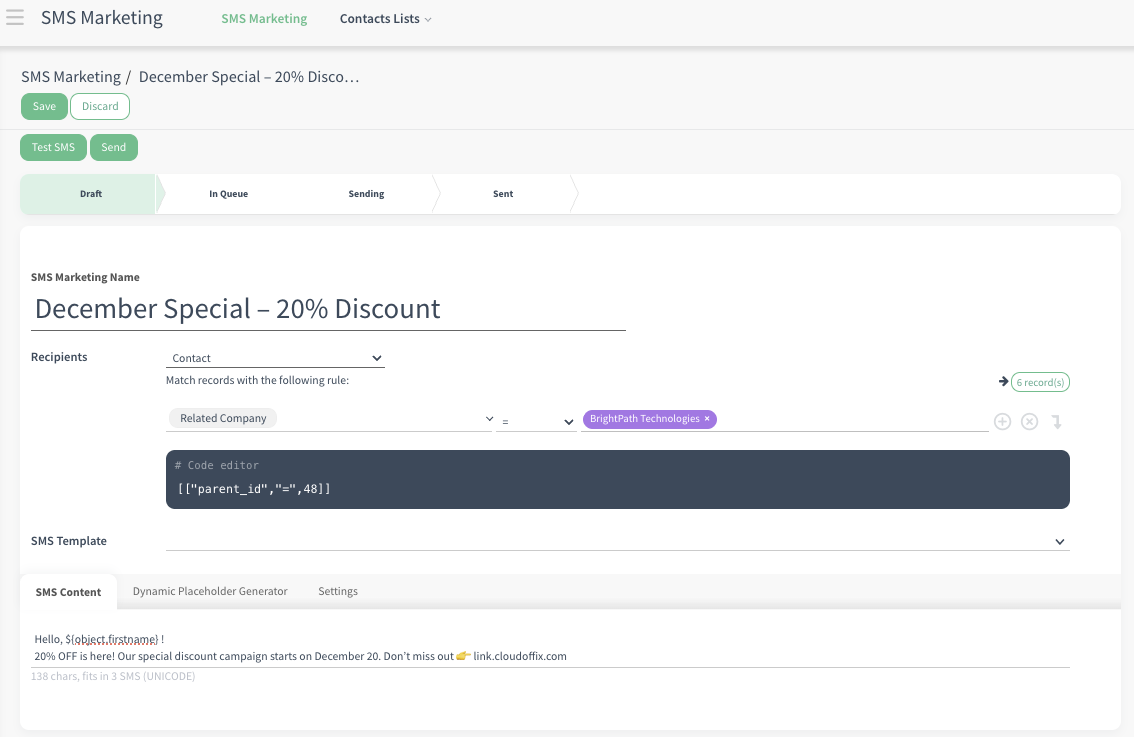
SMS Marketing Name: Descriptive name for the SMS marketing (e.g., ‘Black Friday 20% Discount Alert’, ‘Webinar Reminder’).
-
Recipients: Options below are not mandatory. You can have your own domain filter without choosing any of the options below.
Applicant: Brings fields from the Applicant model (e.g., AI score, applied job). Ex: Applicants who applied for “Sales Manager” position and AI score > 80.
Attendee: Brings fields from the Attendee model (e.g., event name, attendee name, attendance status (e.g., confirmed). Ex: Confirmed attendees for the event CloudOffix Partner Days 2025
Contact: Brings fields from the Contact/Partner model (e.g., company name, job position, country). Ex: Contacts whose job position is Sales Director and country is United Kingdom
Event Track: Brings fields from the Event Track model (e.g., speaker name, speaker email, track name, track status (e.g., proposal, cancelled). Ex: Speakers whose track status is ‘Cancelled’ for CloudOffix Summit 2026.
Lead/Opportunity: Brings fields from the Lead/Opportunity model (e.g., expected revenue, stage, probability, type (lead or opportunity), stage (e.g., new, engaging, won)). Ex: Leads in ‘Engaged” stage.
Quotation: Brings fields from the Quotation model (e.g., has delivery, status (e.g., quotation sent, sales order, cancelled)). Ex: Quotations in ‘Sales Order’ status created in the last 7 days.
-
SMS Template: The exact SMS (from template) that will be sent.
Choose from pre-designed, ready-to-use SMS templates (if available) or create from scratch.
The SMS templates that are created will be listed under Settings > Technical > SMS Templates. You can create new SMS templates from here, or directly when creating the SMS Marketing (e.g., create and edit).
Only users with Administration/Settings access rights can view the Settings app.
Stat Buttons:
Sent (number): Displays the total number of SMS messages that are successfully sent to recipients.
-
Clicked (percentage): Shows the percentage of recipients who clicked any link in the SMS.
You can paste any URL directly into your SMS message and CloudOffix automatically converts it into a trackable link. This allows you to monitor clicks in real time via the ‘Clicked’ stat button.
The trackable link is also automatically created as a new record in the Campaigns app > Link Tracker menu. From there, you can see detailed click analytics.
Important: The Link Tracker menu opens with a default filter: Manually Created. To see your automatically generated SMS links, remove this filter (click the × next to ‘Manually Created’). By this way, you will be able to see all tracked links, including those from your SMS campaigns.
Tabs:
-
SMS Content Tab: Write the actual SMS message here.
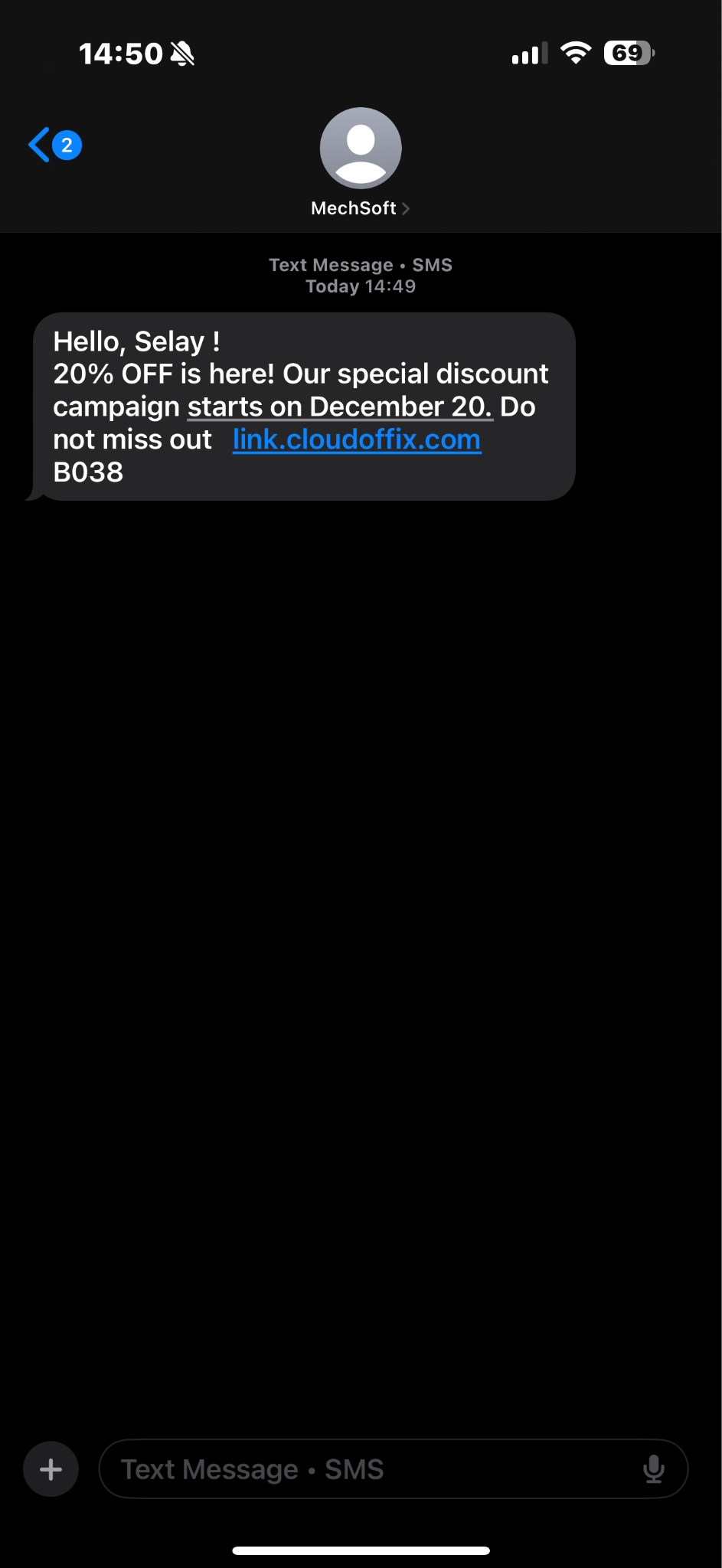
Example: ‘Our 20% discount campaign starts on December 20! Details: link.cloudoffix.com’
-
Dynamic Placeholder Generator Tab: Makes personalization easy: after choosing your recipient type, this tab lists all available fields and instantly generates the correct placeholder (e.g., ${object.firstname})
Simply copy and paste it into your email body — when the mailing is sent, CloudOffix automatically replaces it with each recipient’s real data.
Ex: ‘Hello ${object.firstname}’ becomes ‘Hello Anna’, ‘Hello Max’, or ‘Hello Sophie' for every individual recipient.
Default value field: Optional field to use if the target field is empty.
Settings:
Responsible: The user in charge of this SMS campaign.
Include opt-out link: Automatically adds an unsubscribe link.
Schedule in the future: Set exact date & time for sending instead of immediate.
-
Campaign: Link this SMS to a broader marketing campaign.
If you have created the SMS marketing through stat buttons of a campaign, the field will be filled out automatically with the related campaign record (see the screenshot below).
Source: This is the link source (e.g., search engine, name of SMS list)
Medium: The delivery method (e.g., SMS, email, banner ads, paid ads). Filled out as SMS in default with an option to edit.
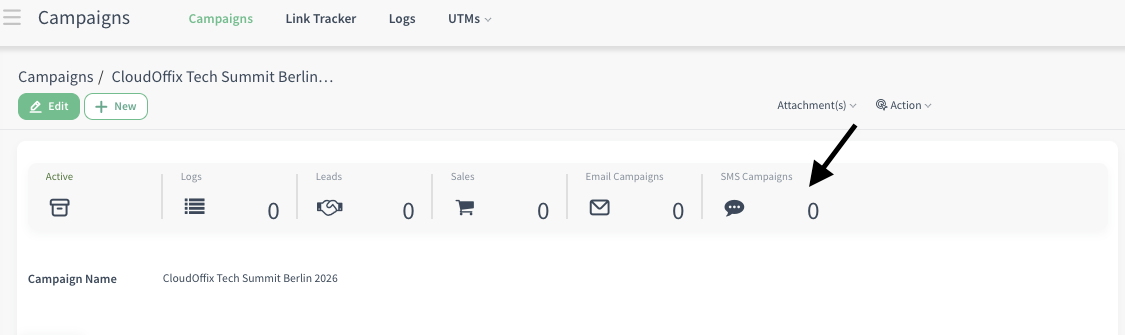
Buttons:
-
Test SMS Button: If you would like to test your SMS before sending it to your actual recipient, click ‘Test SMS’.
The system will allow you to write phone number(s) as recipient(s) to send your SMS for testing. Enter the number(s) that you would like to send your sample SMS.
Send a sample SMS for testing purpose to the numbers below (comma-separated list) (e.g., +31 123456 , +90 456789).
Send to All: The SMS will be sent to all recipients you have defined.

2.2 Critical Fields - Contacts List Creation
Mailing List: The name of the contact list.
-
Website Popup Redirect URL: The full web page URL where visitors are redirected after they successfully subscribe via the website popup.
In the general settings of the Email Marketing app (Email Marketing app > Configuration > Settings), ‘Website Popup’ option should be enabled to view this tab.
Welcome mail template: Mail template to be sent when a contact is subscribed from the website.
Don't show this list in the other unsubscriptions: When this box is checked, the current contact list will not appear in the ‘Is there any other mailing list you want to leave?’ section that is displayed during unsubscription from a different list.
Mandatory Partner: When this box is checked, every new contact you have created will have a contact record in the Contacts app. The contact in the contact list will be automatically linked to this partner/contact record (Partner field).
Partner Tag: If you define a tag here, every new contact created in the Contacts app will have this tag automatically on their contacts card (Tags field).
Recipients Stat Button: By clicking this stat button, you can open the list of all recipients that you have created in the relative contact list, and create new ones by clicking the ‘New’ button.
Tab:
-
Popup Content Tab: Design and customize the website subscription popup that is linked to this contact list. (If the ‘Website Popup’ option is enabled.)
Failed SMS:
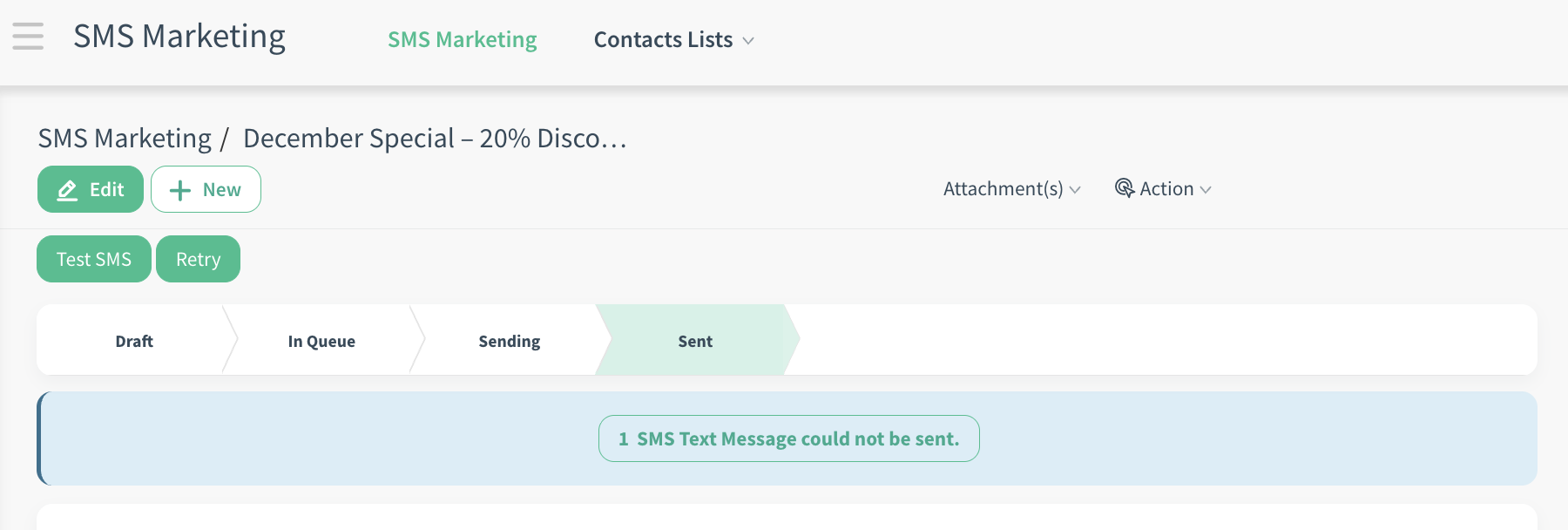
The system gives you warning if the SMS could not be sent. By clicking the warning, you can have detailed information about the failed SMS (e.g., failure type like wrong number format, which phone number, date of technical error leading to SMS not being sent).
All the SMS, including failed ones, can be monitıred from Settings > Technical > SMS Traces.
Note: If your SMS message (or Email Marketing) includes a link, the system automatically converts it through the Link Tracker for proper tracking and analytics. You do not need to manually shorten or modify the link yourself — just paste the original (full) URL directly into the SMS content.
Later, you can view the tracked link record by going to Campaigns > Link Tracker.
Failed SMS Warning
SMS Marketing Creation
SMS Marketing - Kanban view
SMS Marketing - Mobile phone view
3. Example of End-to-End Workflow
Scenario #1: Exclusive VIP Weekend Offer Campaign
The marketing team wants to reward high-value customers with a special 20% weekend discount, but instead of using a predefined contact list, they define their target audience dynamically using a domain filter. When creating the SMS marketing campaign titled ‘VIP Weekend 20% Discount,’ they select the Contact recipient model and apply domain filter criteria such as Country = United Kingdom, Job Position = Sales Director, and Customer Tag = VIP. This ensures that only the exact audience matching these business conditions will receive the message.
The SMS content includes personalization, such as the recipient’s first name, and a direct link to the exclusive offer page. The link is pasted directly into the message, and CloudOffix automatically converts it into a trackable link for analytics. Before launching, the team sends a test SMS to verify that the personalization fields populate correctly and that the link redirects properly. Once approved, they schedule the campaign for Friday morning to maximize engagement.
After sending, they monitor real-time statistics such as the number of successfully delivered messages and the click rate. By reviewing link analytics and campaign results, the team clearly measures engagement and weekend sales impact, demonstrating how SMS Marketing in CloudOffix enables targeted, personalized, and measurable communication rather than simple bulk messaging.
To see an end-to-end marketing management in action, please refer to the following video: [ Marketing Cloud ]