
Voice Agent User Guide
Welcome to the AI-Powered Contact Center
This is not a classic call center — it’s an intelligent, AI-driven one designed to deliver seamless voice interactions.
The AI Voice Agent App transforms your traditional telephony system into an intelligent, always-available digital workforce. Instead of routing callers through rigid IVR menus such as “Press 1 for Sales,” ClouOoffix Voice Agents use advanced artificial intelligence to listen, understand caller intent, and engage in natural, human-like conversations.
Designed to operate 24/7, your Voice Agent can handle a wide range of tasks—from booking appointments and answering frequently asked questions to processing requests and guiding users through common issues. Acting as a highly capable virtual employee that never sleeps, it ensures no customer call goes unanswered, enabling unlimited call handling while improving customer experience and reducing operational workload.
1. How It Works (The Flow)
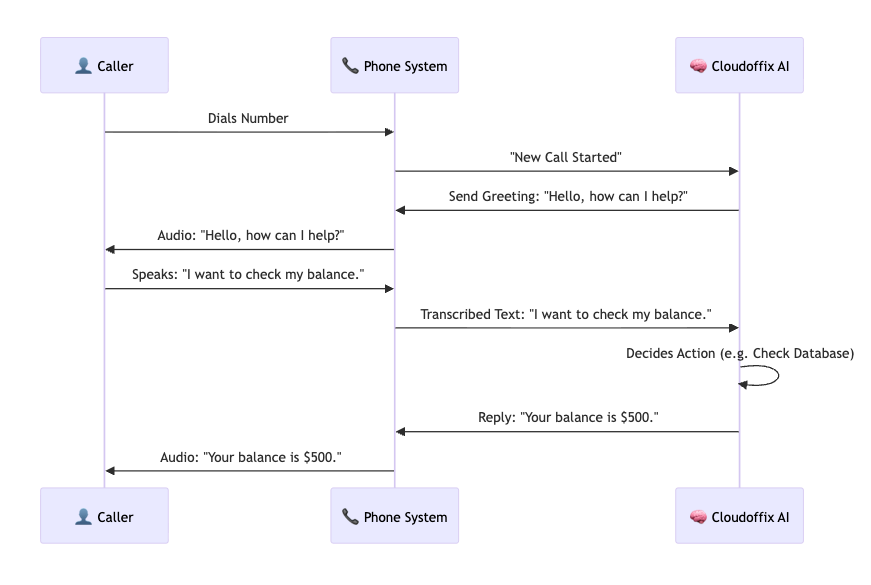
When a user calls your number, the system orchestrates a seamless interaction between the Telephony Network and the AI Technology.
2. Creating a Voice Agent
-
Use Case (Incoming Call): You want to set up a “Customer Support Line” where clients can call 24/7 to ask about their order status.
2.1 Accessing the Menu
-
AI Cloud > Voice Agents > AI Voice Agents
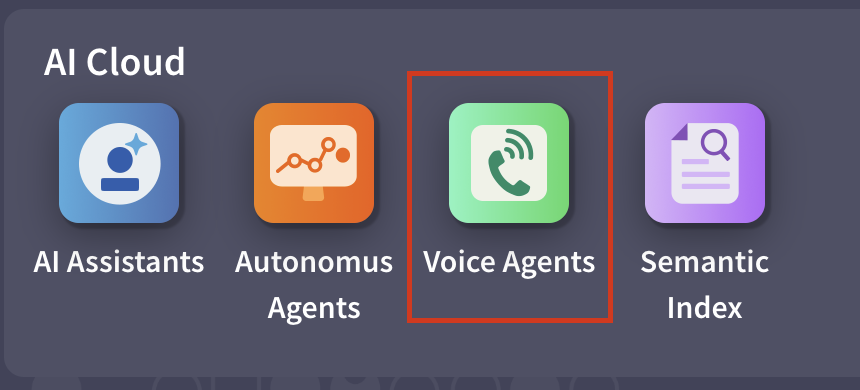
Note: The user must have Administration / Settings access rights.
2.2 Defining the Persona
-
Click Create to design your digital employee.
-
Name: Give it a role (e.g., “Front Desk Receptionist”).
-
Voice: Choose the vocal personality (e.g., Kore for professional, Puck for energetic).
-
AI Topic (The Brain): This is the most critical setting. It defines Intelligence.
-
Basic: “You are a receptionist. Forward calls to extensions.”
-
Advanced (Actions): “You are a Service Agent. If the user asks for a refund, Run the ‘Process Refund’ Action to update the database.”
-
Scope: You can give the Agent access to your Calendar, Stock, or CRM Actions. It can do anything a human user can do if you allow it.
-
-
-
Impersonated User: The system user account the Agent “logs in” as to perform these actions. This user should be selected with sufficiently high permissions so the Agent can access the required data in the database, in order to generate accurate responses.
2.3 SIP Server Configuration (Connectivity)
This section bridges the AI to the telephone network.
-
Outcall IP / Address (The Gateway):
-
What: This is the digital address of your VoIP Provider (e.g., Twilio, TurkTelekom).
-
Why: When the Agent tries to make a call, it needs to know “Where do I send the signal?”.
-
-
Username / Password (The Billing Key):
-
What: Your secure credentials for the SIP Trunk.
-
Why: These credentials authorize the system to place outbound calls through your SIP provider. Without proper authentication, the Agent has no permission to initiate calls. It is effectively a phone without an active line, able to receive instructions but unable to dial out.
-
In other terms, without valid credentials, the Agent is like a phone with no SIM card or line subscription and cannot place calls.
-
-
-
Whitelist :
-
What: A list of trusted IP addresses (comma-separated).
-
Why: Security. The internet is full of bots scanning for open phone lines. By entering your Provider’s IP here, you tell the system: “Only answer the door if the call comes from Twilio. Ignore everyone else.”
-
2.4 Synchronization
You must manually push updates to SIP Server.
-
When to Sync: Only when you change Voice, Language, or SIP Credentials (for telephony-related settings). Changes to the AI Topic or Agent instructions take effect immediately and do not require synchronization with the SIP Server.
-
Action: Click the Send to SIP Server button.
3. Outbound Calls
-
Use Case: You want to call 500 customers to remind them of their expiring contracts.
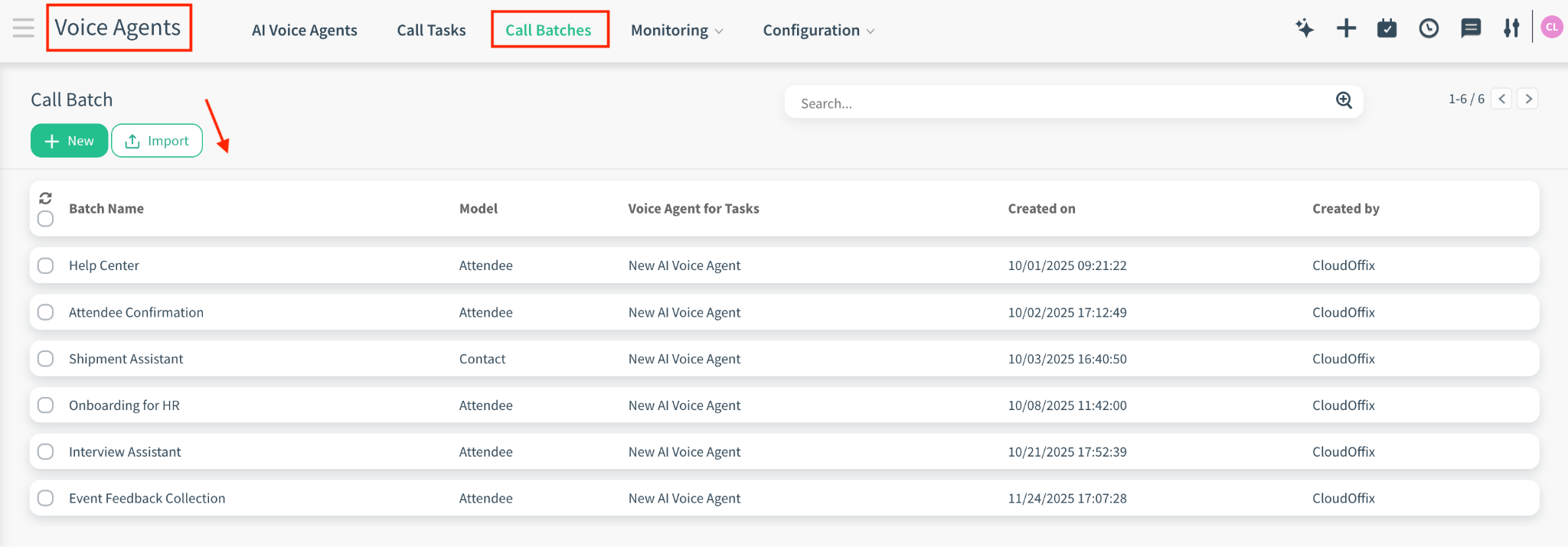
Calls are executed in Batches:
AI Cloud > Voice Agents > Call Batches.
3.1 Batch Configuration
-
Voice Agent (The Caller): Select the persona (e.g., “Attendee Confirmation”).
-
Pro Tip: Ensure this agent’s Topic includes all necessary instructions and actions relevant to the campaign (e.g., "Confirm attendance" or "Send SMS"). During an outbound call, the agent will utilize the specific actions defined within its assigned Topic to fulfill the campaign goals.
-
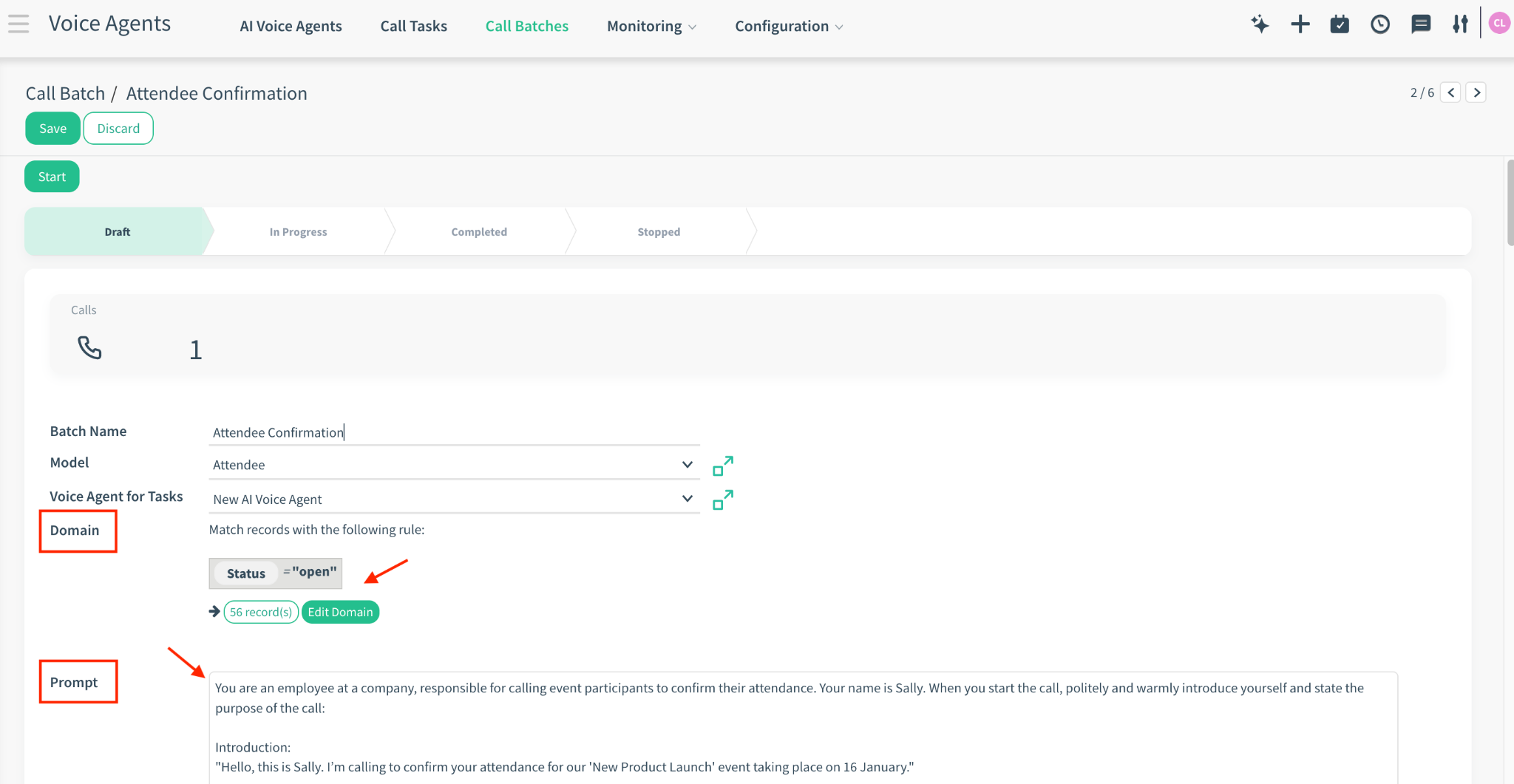
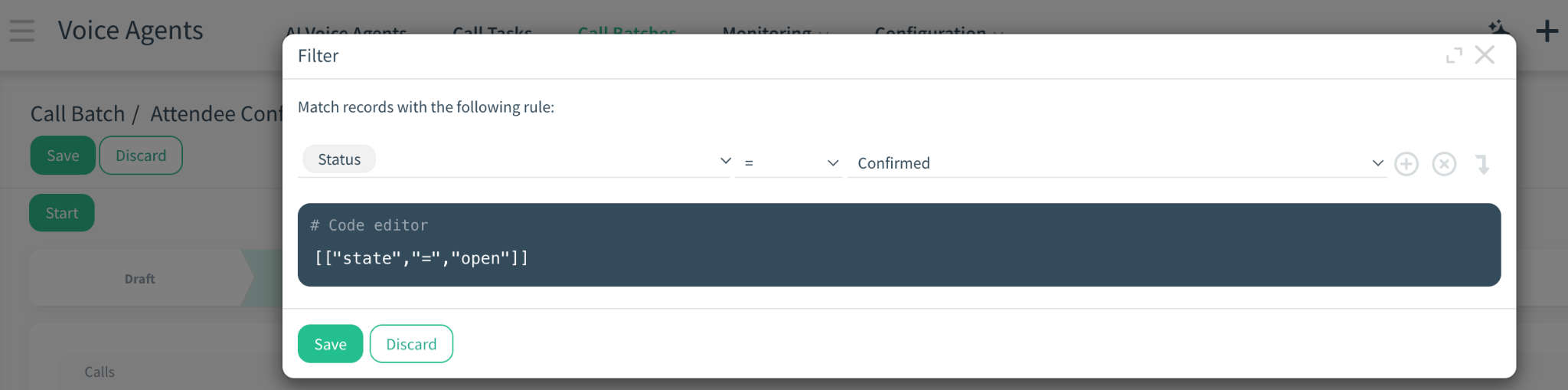
Audience (The Domain): Select who to call using filters (e.g., Attendance status is Confirmed).
-
The Prompt (The Agent's Identity & Logic): Prompt is the core set of instructions that defines the AI voice agent's personality, communication style, mission scope, and behavioral logic. Unlike a simple greeting, it dictates how the agent processes user responses and executes specific actions.
-
Syntax: Use Mako templates for dynamic data injection (e.g., ${record.name}).
-
Structure: A robust prompt typically consists of three key elements:
-
Persona & Goal: Who the agent is and the primary objective of the call.
-
Conversation Flow: Guidelines for handling different scenarios (Confirmation, Rejection, or Inquiries).
-
Example Prompt Structure:
Persona: You are Alex, an event coordinator.
Opening: "Hi ${record.name}, this is Alex. I'm calling to see if you'll be joining our 'New Product Launch' on January 24th. Will you be attending?"
Conversation Logic:
-
If Yes: Express excitement and let them know you look forward to seeing them.
-
If No: Kindly acknowledge their absence and wish them a great day.
-
If Location Asked: Offer to send the address via SMS and confirm if they would like to receive it.
3.2 Execution
-
Click Start.
-
The system calculates the audience and generates Call Tasks.
-
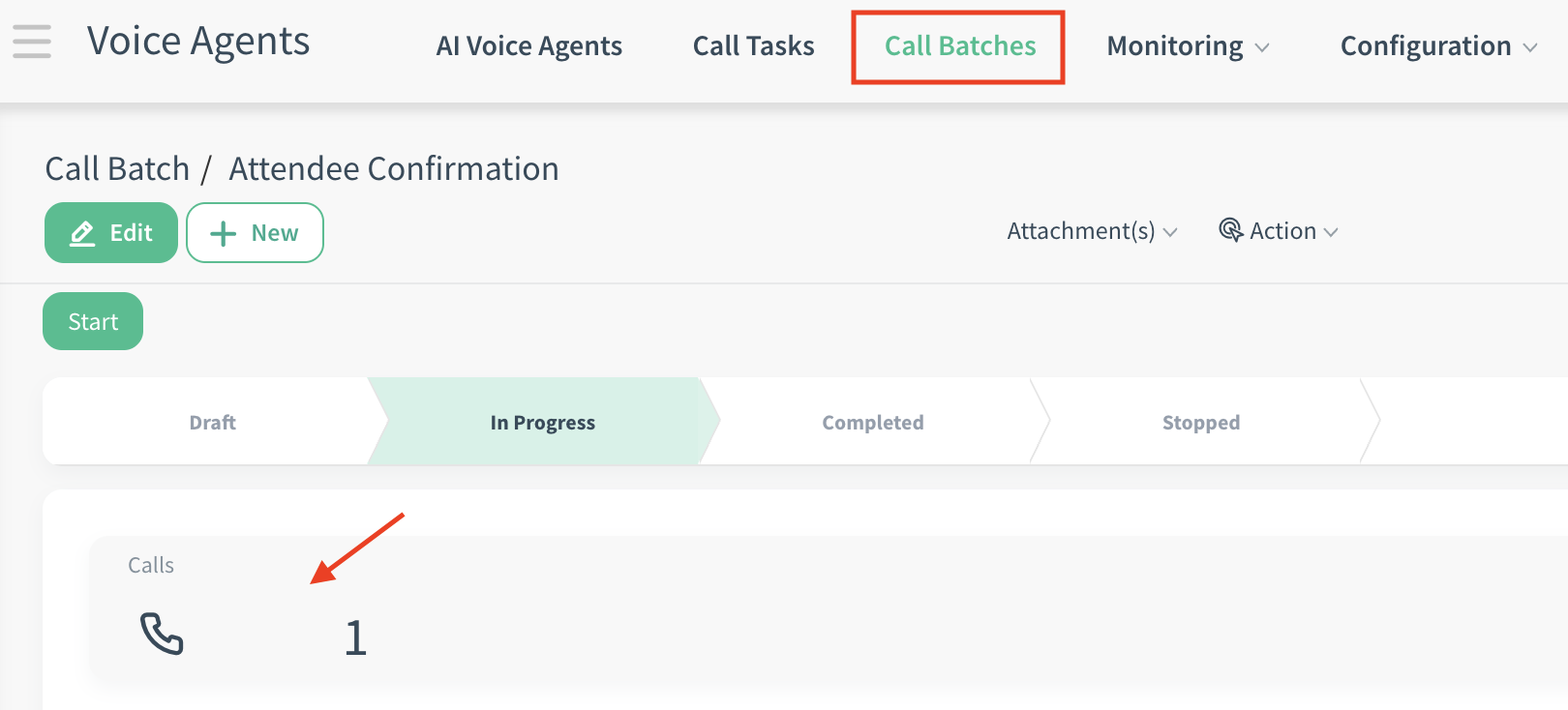
When a Call Batch is started, the Call Tasks generated from the batch can be accessed from the stat buttons of the related Call Batch.
3.3 Smart Phone Selection
The system automatically searches for the best contact number for each record in this priority order:
-
phone (Main Phone)
-
mobile (Mobile Number)
-
contact_phone
-
work_phone
4. Understanding Call Tasks (The Units of Work)
When you start a Batch, the system creates one AI Call Task for each customer.
AI Cloud > Voice Agents > Call Tasks.
-
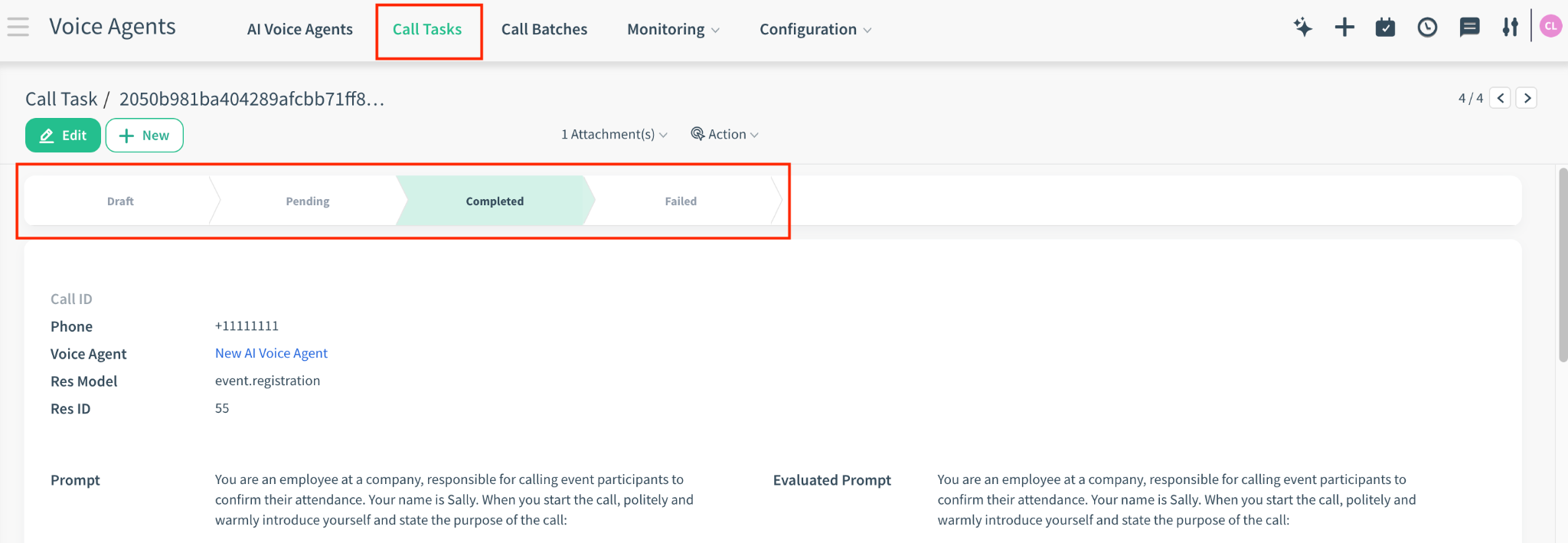
What is it? A Call Task represents a single attempt to contact a specific person. It holds the “State” of that specific phone call.
-
Task States:
-
Pending: The task is queued and waiting for the SIP Engine to pick it up.
-
In Progress: The number is being dialed right now.
-
Completed: The call was answered, and the conversation finished successfully.
-
Failed: The call could not be completed (Busy/No Answer).
-
-
Retry: The system does not auto-retry. You must manually address failed tasks.
-
Call Recordings and Transcripts Storage
-
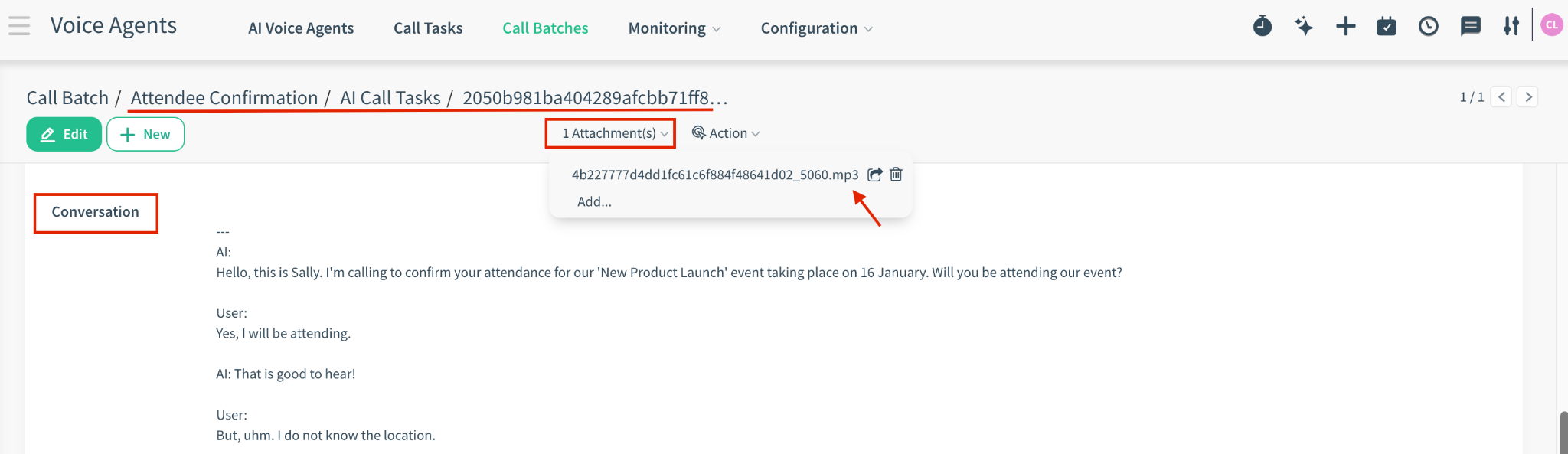
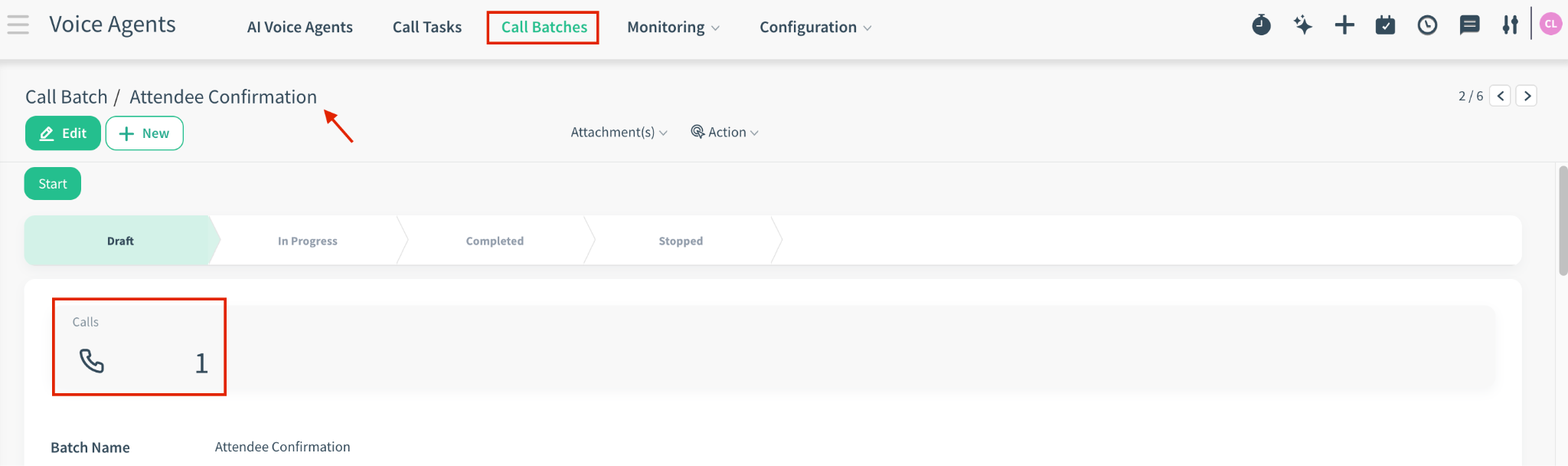
For outbound calls initiated by the Voice Agent, both the call transcript and the audio recording are automatically attached to the related call. These recordings and transcripts can be accessed via two ways:
-
First way: Voice Agents > Call Tasks > Related Call Task record
-
Second way: Voice Agents > Call Batches > Related Call Batch record > Calls Stat Button > Select the related call record
-
-
The audio recording can be accessed from the Attachment(s) button.
-
The call transcript (e.g., the whole conversation between the Voice Agent and the user) is available in the Conversation section.
-
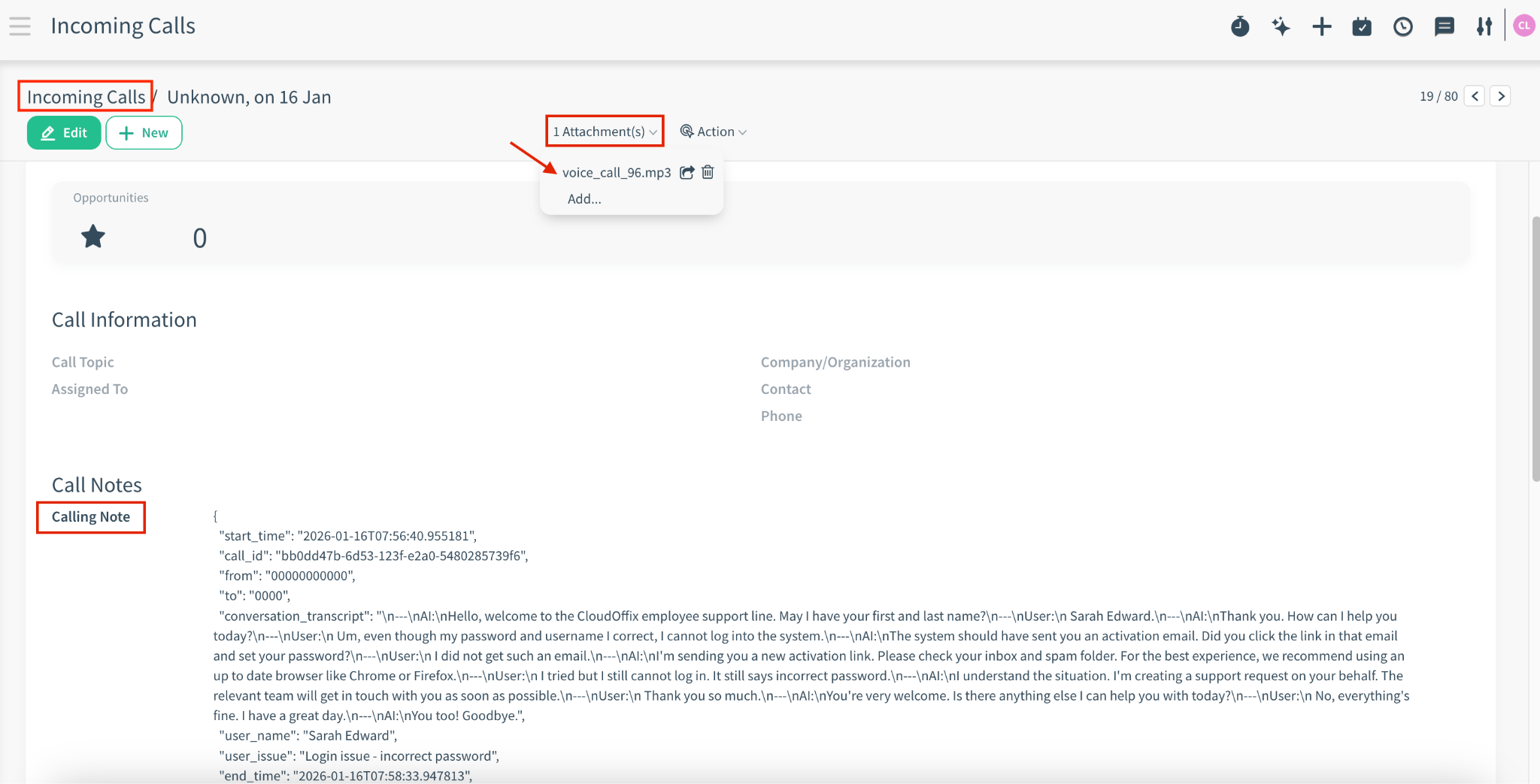
For inbound calls where a user calls the Voice Agent, both the call transcript and the audio recording are saved under Social Cloud > Incoming Calls.
-
The audio recording can be accessed from the Attachment(s) button.
-
The call transcript is available in the Calling Note section, along with additional details (e.g., caller’s phone number, start and end time, token usage)
-
6. Monitoring & Billing
6.1 Checking System Health
If you suspect the telephony engine is down or unresponsive:
-
Location: Go to the list view of AI Voice Agents.
-
Action Menu: Select one or more agents, click Action, and choose Fetch SIP Server Status.
-
Output: The system will message you (in the Chatter area) with the current uptime and active thread count.
6.2 Token Usage (Cost)
Voice Agent usage is billed primarily based on conversation duration, calculated per minute of live voice interaction. This pricing covers all AI processing required for understanding spoken input and generating voice responses during the call.
Costs may vary depending on the number of concurrent calls, as higher simultaneous usage requires additional reserved infrastructure capacity.
It’s important to note that while conversational AI tokens used during the call are included in the Voice Agent pricing, any operational actions triggered by the agent—such as creating or updating records, sending emails, changing stages, or running workflows—consume CloudOffix AI tokens from your standard AI token pool.
For detailed pricing formulas, concurrency tiers, token scope clarification, and licensing requirements (including the need for an AI Builder license), please refer to the CloudOffix Licensing Guide – 3.10 Voice-to-Voice Agent section > Licensing Guide