
Integration Cloud: External Data Apps
Centralized control for data from external applications
04 February 2026 , New Features
Overview:
Integration Cloud is our new solution designed to seamlessly connect your external data sources — such as Salesforce, HubSpot, SAP, Oracle, Workday, and many more — directly into CloudOffix. With a low-code setup and an easy-to-use interface, you can pull in data, design workflows, and build integrated experiences faster than ever.
Updates:
1. Multi-Source Data Import & App Builder Integration: § Connect to external systems like Salesforce, HubSpot, SAP, Oracle, Workday, Microsoft Dynamics, Zendesk, Freshworks, and more — import the data you need and instantly continue designing your app in App Builder using familiar low-code tools, now powered by external datasets.
2. Centralized Integration Hub: A dedicated Integration Cloud has been introduced to manage all external connections in one place, making setup easier, faster, and far more cost-effective than traditional integration methods.
Benefits:
• Faster, Low-Cost Integrations: Bring data from multiple platforms into CloudOffix without custom development or complex middleware.
• Design with External Data: Create apps, views, and processes in App Builder using imported data just as easily as native CloudOffix data.
• Scalable & Flexible: Easily expand your integration landscape as your business grows, adding new systems whenever needed.
How it works?
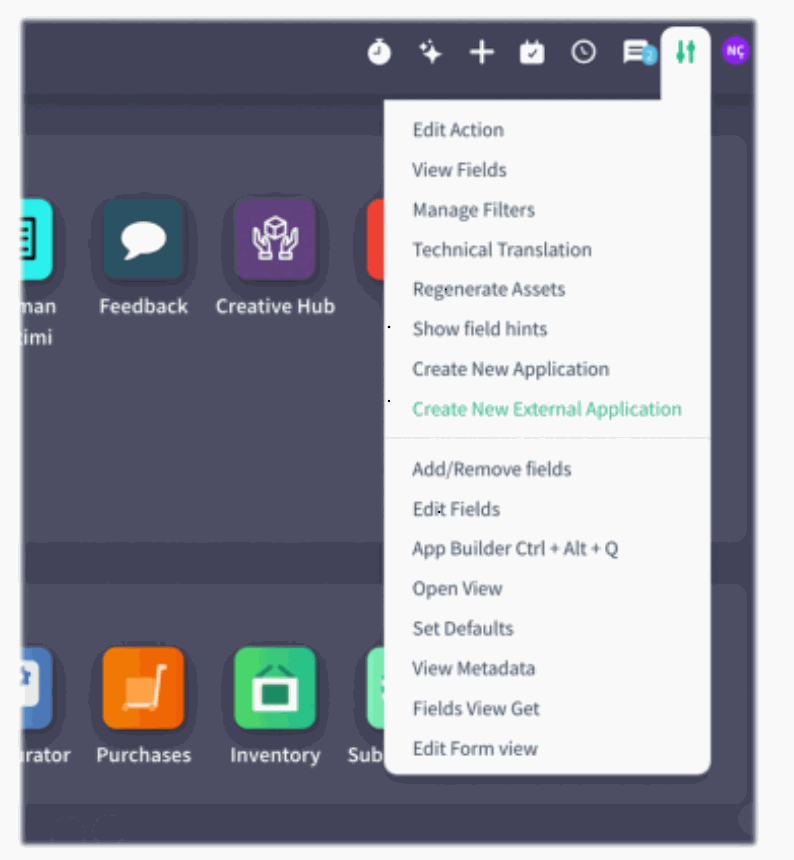
- First, click the developer tools icon in the top-right corner and select “Create New External Application.”
)%20(72).png?access_token=e3fb5c2d-86ca-4d5b-9782-5245610b67f3)
- In the pop-up, design your app just like in App Builder:
. Choose an icon background color and icon color,
. Enter an app name (for example, Salesforce Deals),
. The Category is already set to Integration Cloud, so you’re good to go.
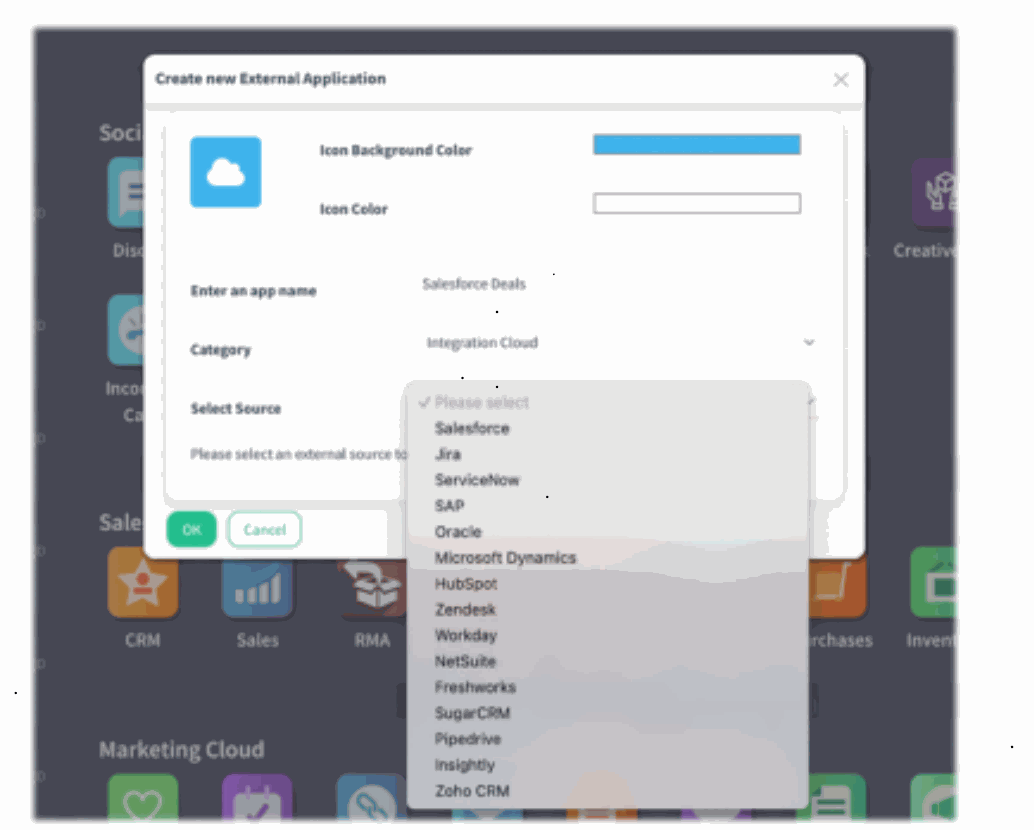
- Next, use the Select Source dropdown to pick where your data will come from — for example Salesforce, HubSpot, SAP, Oracle, Workday, Microsoft Dynamics, Jira, NetSuite, ServiceNow, Zendesk, and others.
)%20(73).png?access_token=d8d28d12-350a-43dc-a78f-03d93a299012)
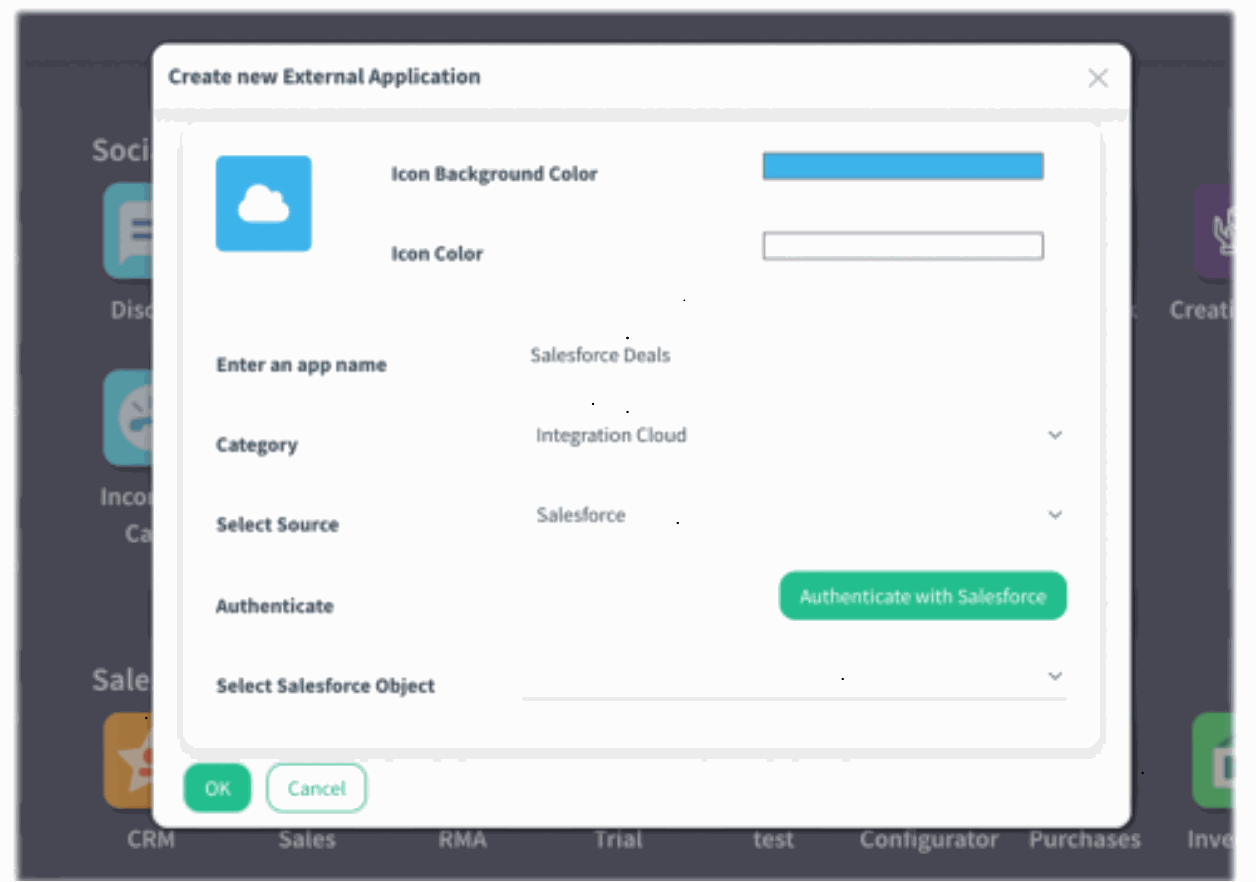
- After selecting the source, you will be prompted to authenticate your account. This step is required to securely connect your data and allow CloudOffix to access the relevant resources. Once authenticated, you can proceed to select the specific object or data type you want to bring into CloudOffix, such as leads, contacts, opportunities, tickets, or employees.
)%20(74).png?access_token=cac9a9a8-0705-431c-9391-16872b3ceeab)
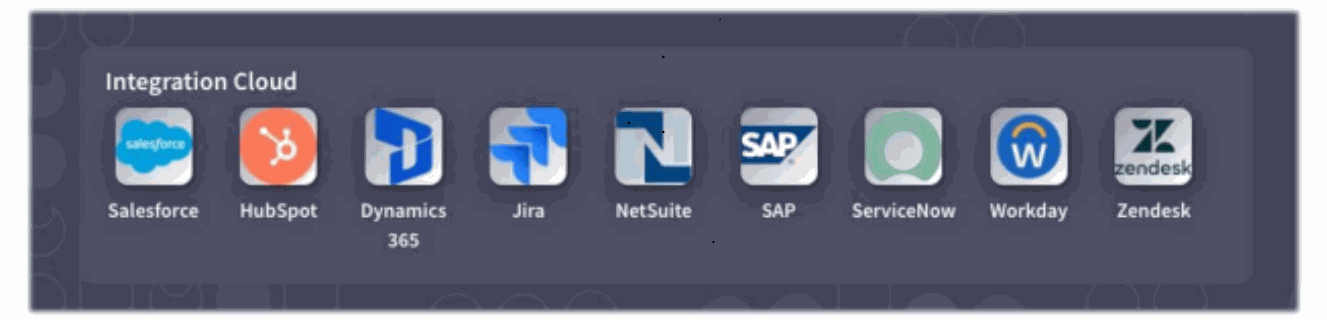
- Ta-da! Your new app now appears under the Integration Cloud section. When you open it, you’re taken into App Builder, where you can customize layouts, views and fields with the same low-code tools you already know — but this time, using live data coming from your external system.
)%20(75).png?access_token=e2376c3a-84e3-4976-b2ac-3fda51fe2778)
- For now, your imported data stays inside CloudOffix and can be fully managed there. But exciting things are on the way — upcoming releases will bring full two-way sync, so changes made in CloudOffix will smoothly flow back into systems like Salesforce, HubSpot, and others. Pretty cool, right?