
Scoring App Configuration and Workflow Guide
Marketing Cloud: Scoring App Configuration and Workflow Guide
This document provides a comprehensive guide to the Scoring App in CloudOffix, detailing its menu items, critical fields, and an example workflow for the use of scoring.
For more information about configuring Marketing Cloud please refer to the Marketing Cloud General Settings Configuration Guide: [ Marketing Cloud General Settings Configuration Guide ]
1. Menu Items
Below are the primary menu items and their functions.
1.1 Scoring:
Functionality: Central dashboard where all active/deactive scoring rules are listed and managed.
Purpose: List, create, edit, activate/deactivate scoring rules. You can easily find what you are looking for by using filters and group by on the scoring rules you have created.
1.2 Scoring Criteria:
Functionality: Lists all the scoring criteria that are defined in the database. You can create new scoring criteria.
Purpose: Create new scoring criteria, or edit the existing ones. You can choose the operators, model (contact or lead), type (engagement or property), criteria field.
* The scoring criteria you have created will appear in the dropdown list menu when you set up your scoring rule.
2. Critical Fields
The following fields are critical for an effective use of scoring:
2.1 Critical Fields - Scoring Creation (Scoring Rules Page)
Rule Name: The name of the rule.
-
Criteria Type:
Property: Based on the fields of the lead/opportunity or contact (e.g., job position, email).
Engagement: Based on behavioral actions of the lead/opportunity or contact (e.g., mailing opt-out, bounce count)
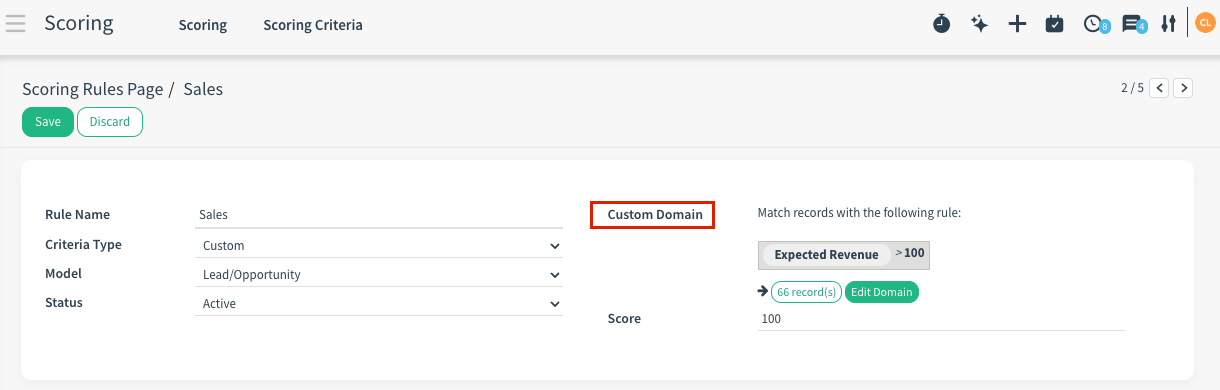
Custom: Opens the domain editor where you can set up your custom domain, instead of selecting from a list.
-
Model: Acts as a pre-filter that determines which type of records the scoring rule will apply to — it decides the pool of data (fields) available for your scoring criteria.
Contact: Brings the fields from the contacts model.
Lead/Opportunity: Brings the fields from the Lead/Opportunity field.
-
Status:
Active: The scoring rule is currently running. Every time a contact performs one of the defined actions, CloudOffix automatically adds/subtracts points.
Deactive: The scoring rule is paused. No points are added or removed, even if the defined actions occur.
Criteria: The list changes based on the selected criteria type and model.
Operator: The operator values changes based on the chosen criteria.
-
Value: A free-text field used to specify the exact match or condition that must be met for the scoring criterion to trigger.
It defines the precise data the system looks for in the selected field — without this value, the criterion would be incomplete and cannot be saved.
-
Score: The number of points this specific criterion adds or subtracts when the condition is met.
You can enter a positive value (e.g., 25) to increase the lead/contact score or a negative value (e.g., -10) to decrease it. The calculated lead score can be a negative number (e.g., -40) based on the scoring rule you have defined.
Custom Domain
Example:
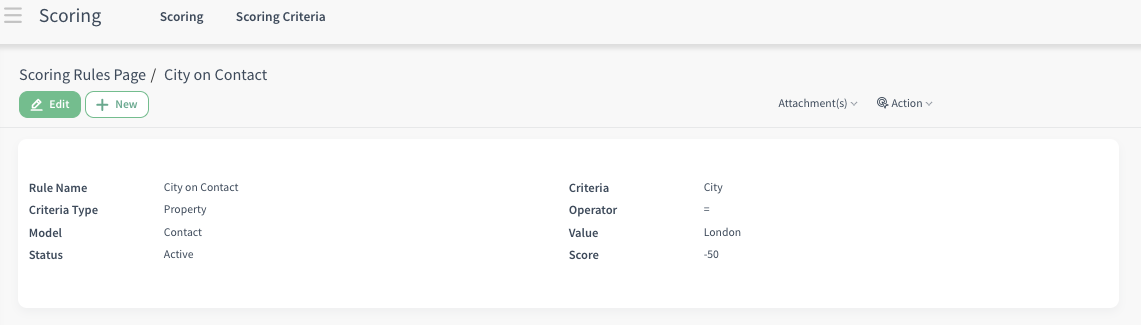
Criteria type: Property
Model: Contact
Rule Name: City on Contact (London)
Criteria: City
Operator: =
Value: London
Score: -50
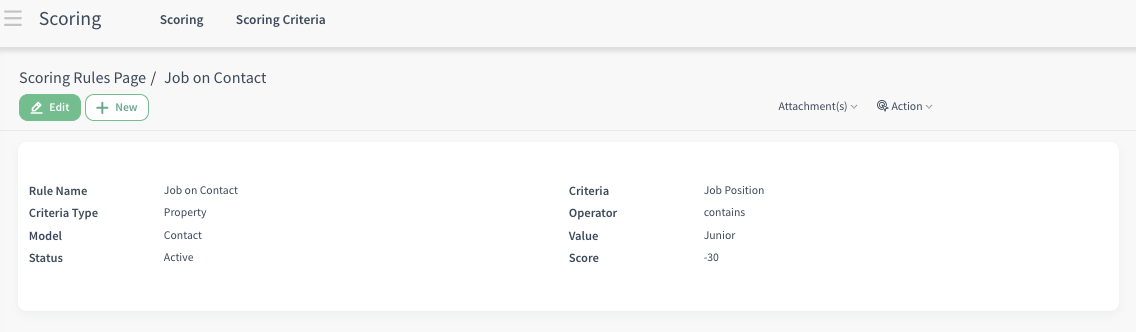
Rule Name: Job Position on Contact (Junior)
Criteria: Job position
Operator: Contains
Value: Junior
Score: -30
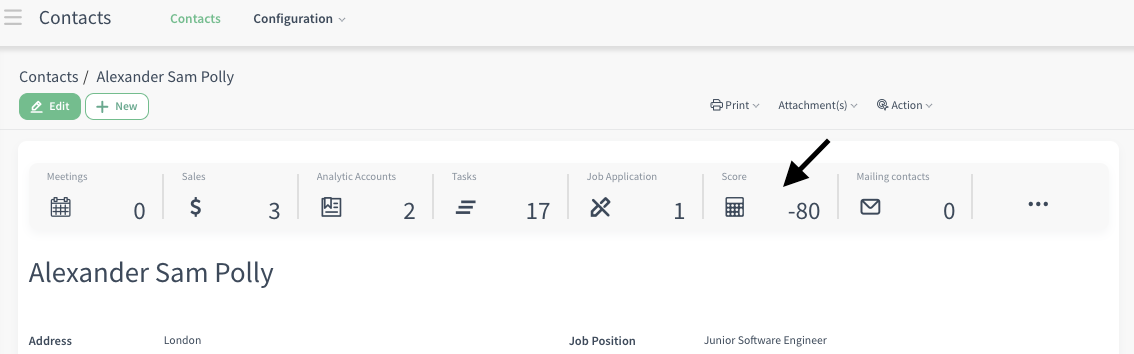
The lead score on a contact card whose city is London and job position is ‘Junior’ Software Engineer will have a lead score of -80.
Open the Leads list and sort by Score (e.g., Lead score greater than 80) — these low-priority records will now not appear, letting your sales team naturally concentrate on the more promising leads at the top.
Example:
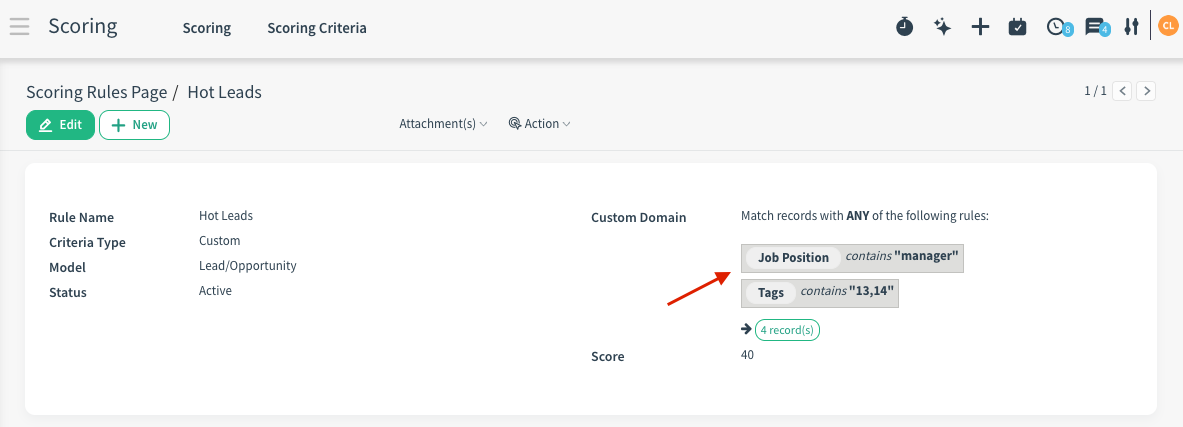
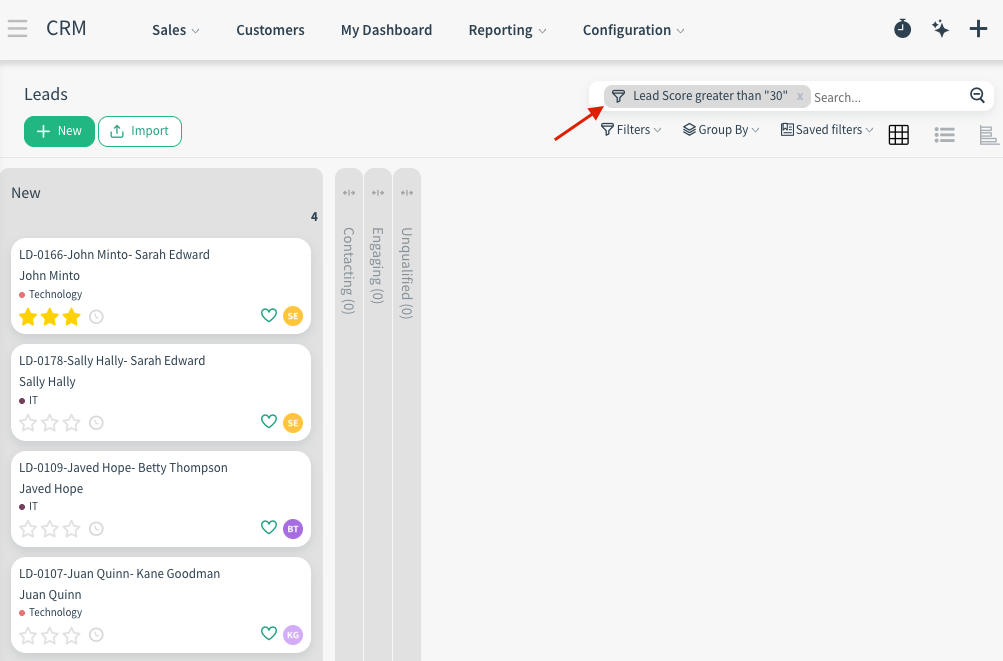
To focus on the most promising leads, create a scoring rule that gives priority to people whose tags contain IT on their lead card, and the job title contains ‘Manager’. This automatically highlights your ideal target audience. Once the rule runs, go to the Leads list, filter by score (e.g., score greater than 30), and the people who appear are ready for immediate follow-up.
Note: Scoring App Limitations
The Scoring app cannot use stat button data (e.g., number of Calls, Meetings) for scoring rules.
These numbers (shown on stat buttons) are calculated on the fly when you open a lead/contact record — they are not stored permanently (e.g., non-stored) on the record for performance reasons. The moment you open a specific lead or contact record, CloudOffix instantly runs a quick background query to count the related activities (calls logged, meetings scheduled) for that exact record. It then displays the count on the stat buttons.
This approach keeps the system fast and performant (no need to update counts constantly in the background). However, because the data isn’t stored as a fixed field, the Scoring app cannot use it for rules.
What this means: You cannot create rules like ‘If more than 3 calls → +20 points’
3. Example of End-to-End Workflow
Scenario #1: ‘Turning Webinar Attendees into Sales-Ready Leads’
Acme Corp has just wrapped up a well-attended webinar, “AI-Powered Cloud Strategies 2026”, with 320 sign-ups. Instead of the marketing team wasting days sorting through every registration to guess who’s truly interested, they quietly set up a smart scoring system that does the work automatically. Anyone whose job title contains “Manager”, “Director”, or “Head” automatically gets +50 points because these are the decision-makers sales really want to reach. At the same time, because quite a few students registered using their school emails, any email address containing “.edu” loses -100 points — instantly pushing students out of the high-priority group. They also add smaller boosts: for example, +15 points for anyone located in Germany (a key target market).
The marketing team then creates one simple mass email campaign that automatically goes out only to contacts whose score reaches 80 or higher — offering them a personalized “Let’s talk about your AI cloud strategy” consultation call. Two weeks later the marketing and sales manager looked at the results, saw 52 people opened the email and 22 of them booked consultation calls with the sales team. The right people get attention at the right moment, sales conversations are more relevant, and everyone wastes much less time chasing cold leads.
To see an end-to-end marketing management in action, please refer to the following video: [ Marketing Cloud ]