
Overview: App Builder frontend designs can now be embedded directly into external websites. This enhancement enables custom forms, dashboards, and interactive forms created in App Builder to be displayed on any web platform, providing a seamless way to extend CloudOffix experiences beyond the main application.
Updates:
1. Embed Code Generator:
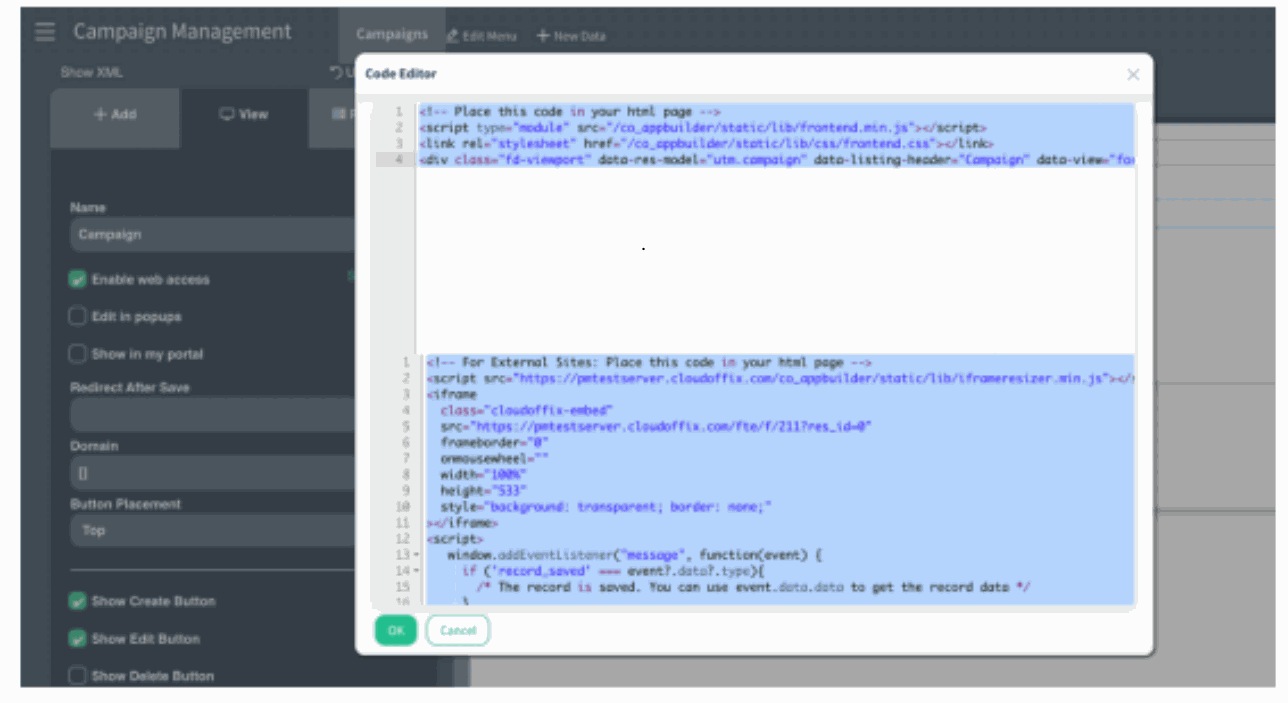
- A new “Show Code” button has been added under Enable web access. This provides the full embed script and iframe code required to publish App Builder forms directly inside external websites.
2. Button Placement Option:
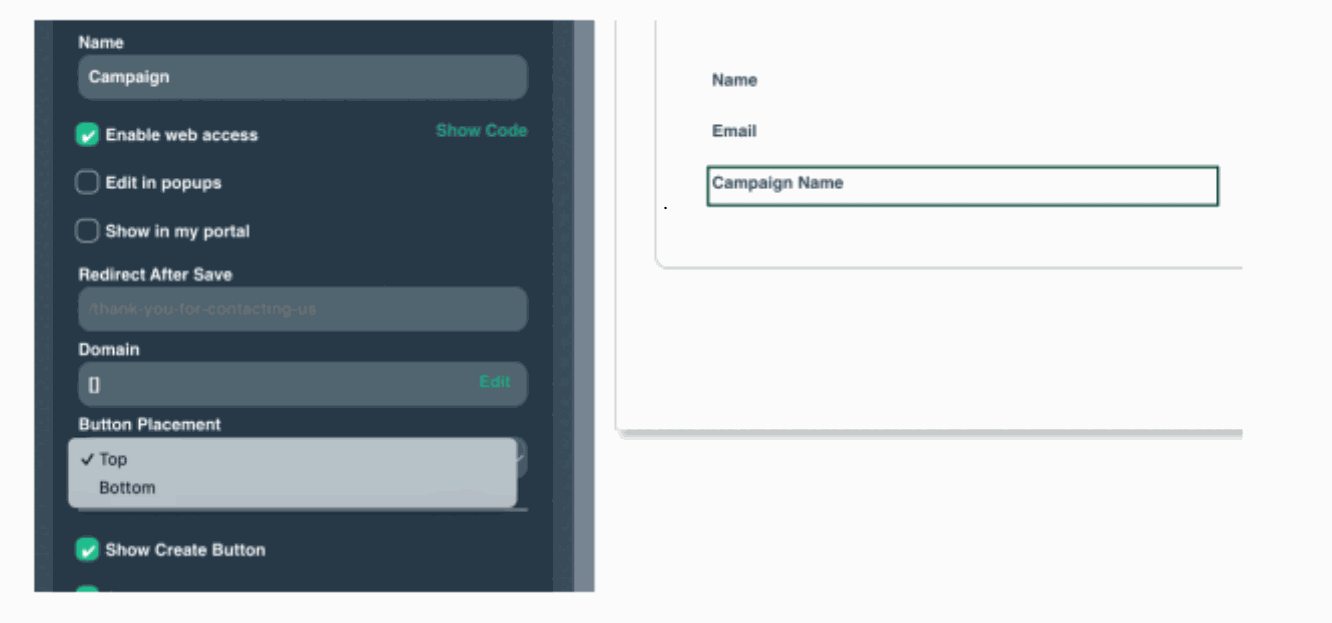
- A new design setting allows selecting whether the action button area appears at the top or bottom of the embedded form, offering more flexibility for external display layouts.
Benefits:
• Effortless Embedding:
App Builder forms can now be added to any website via a ready-to-use script — no custom development needed.
• Frontend Access Overview:
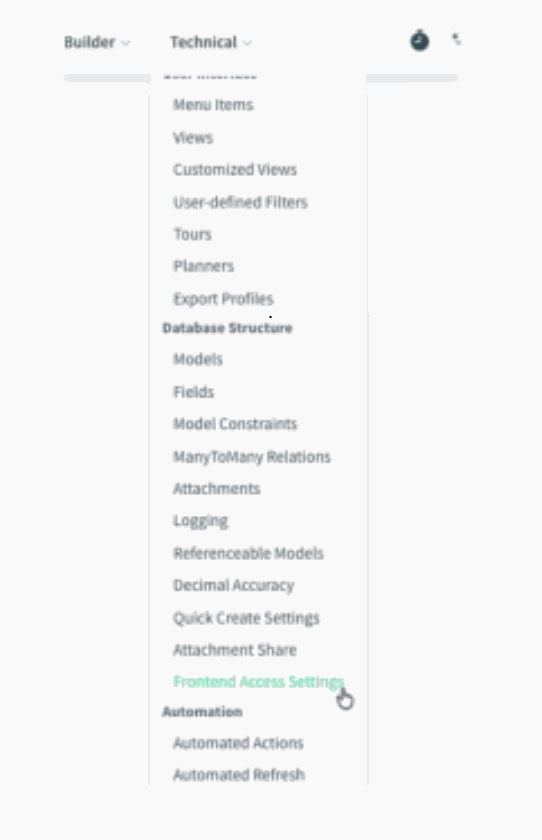
Embedded forms are also visible from the Frontend Access Settings under the Technical menu, providing a quick overview of what is accessible externally.
How it works?
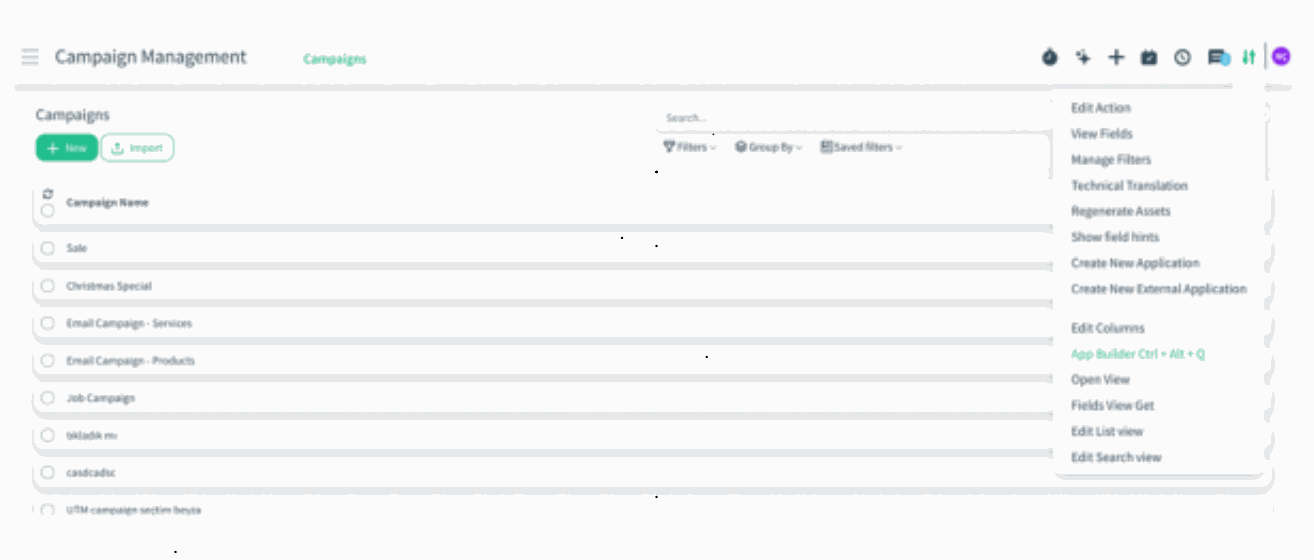
- Start by opening your app in App Builder. In this example, we’re using the Campaign Management app.
)%20(85).png?access_token=26ce7672-89f5-4789-b6cc-c58aaab0013e)
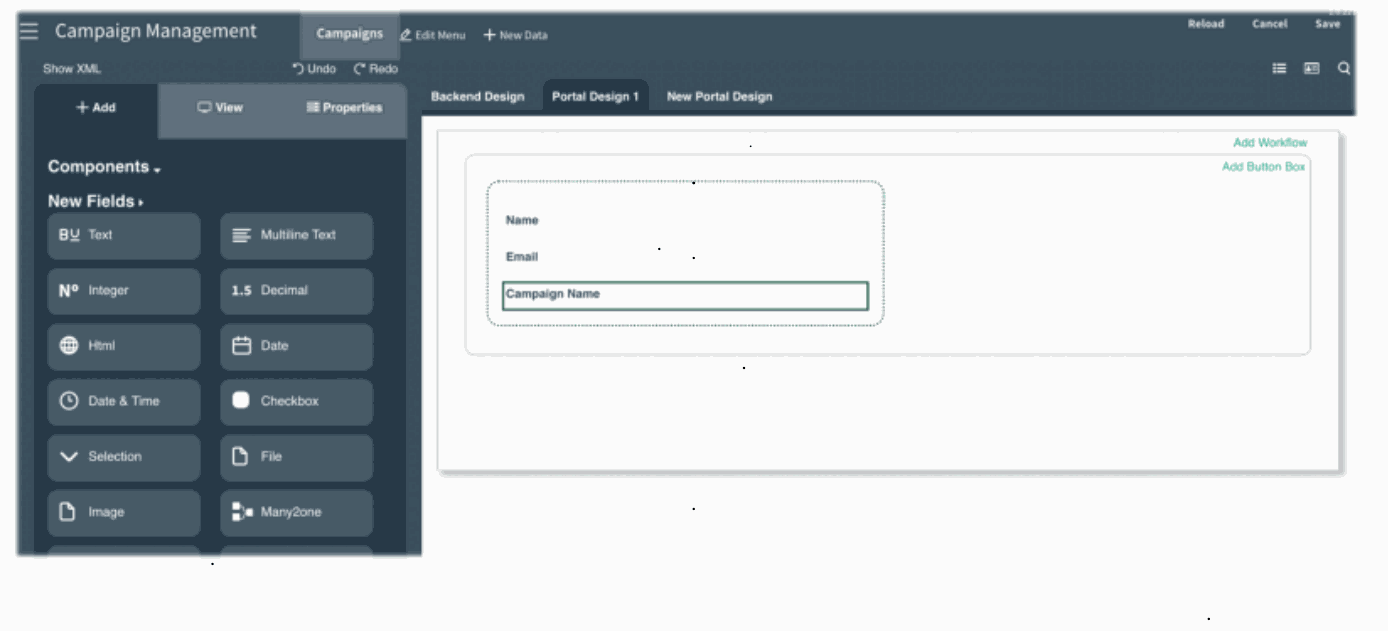
- It will first open in Backend Design, so switch to Portal Design 1 to prepare the form for external use
)%20(86).png?access_token=ccc1d058-07c7-4879-ab11-c13c10897470)
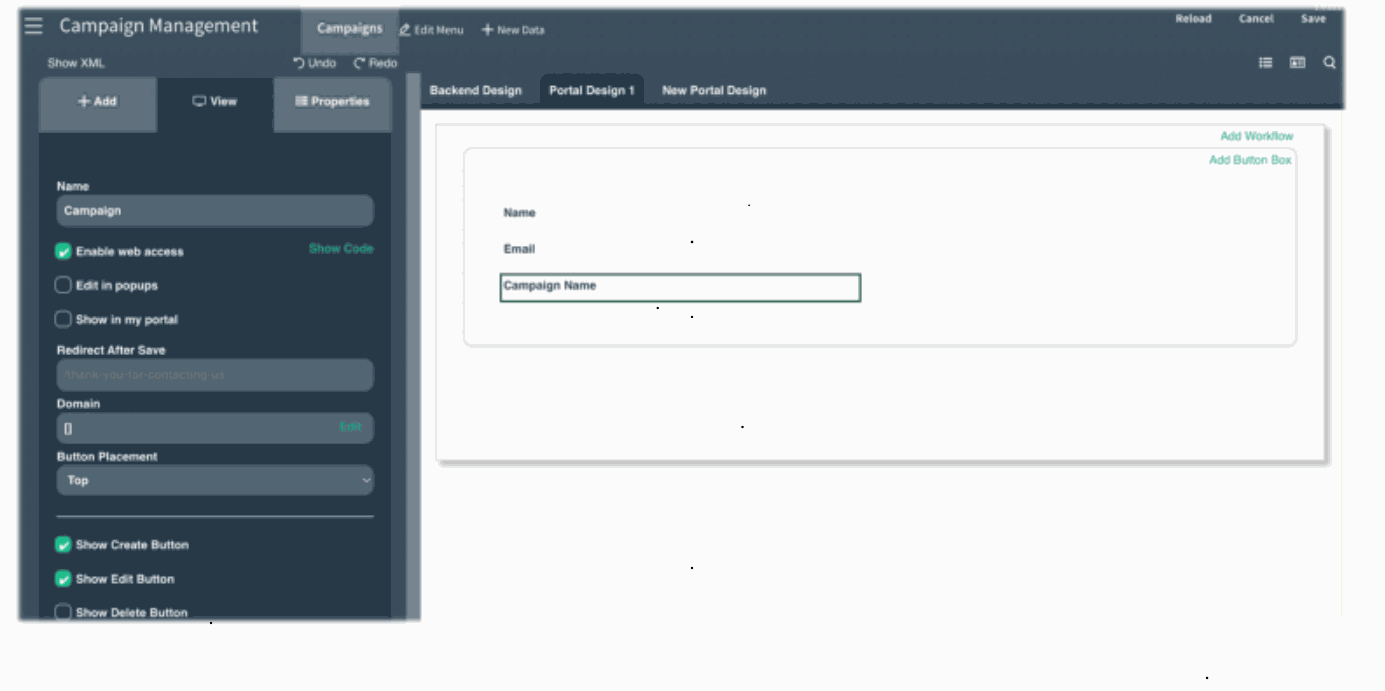
- Next, go to the View tab and enable Web Access. This part already existed before — nothing surprising here yet.
)%20(87).png?access_token=bc7e43de-d7ae-4430-a64f-b680d9017621)
- Now for the new part: click Show Code. A new code editor window appears, providing two ready-to-use snippets: one for embedding the form inside CloudOffix pages and one specifically for external websites, including an iframe setup and event listeners. Simply copy the external embed code and paste it into your website’s HTML.
)%20(88).png?access_token=9339d4dc-f91f-47db-ab77-ab4d70509fc4)
- A second enhancement comes from the new Button Placement option. You can now decide whether the control panel should appear at the top or bottom of the embedded form. Choose whichever works best for the layout of your external website
)%20(89).png?access_token=1f564bb9-f71c-44fb-b68d-dd046110b282)
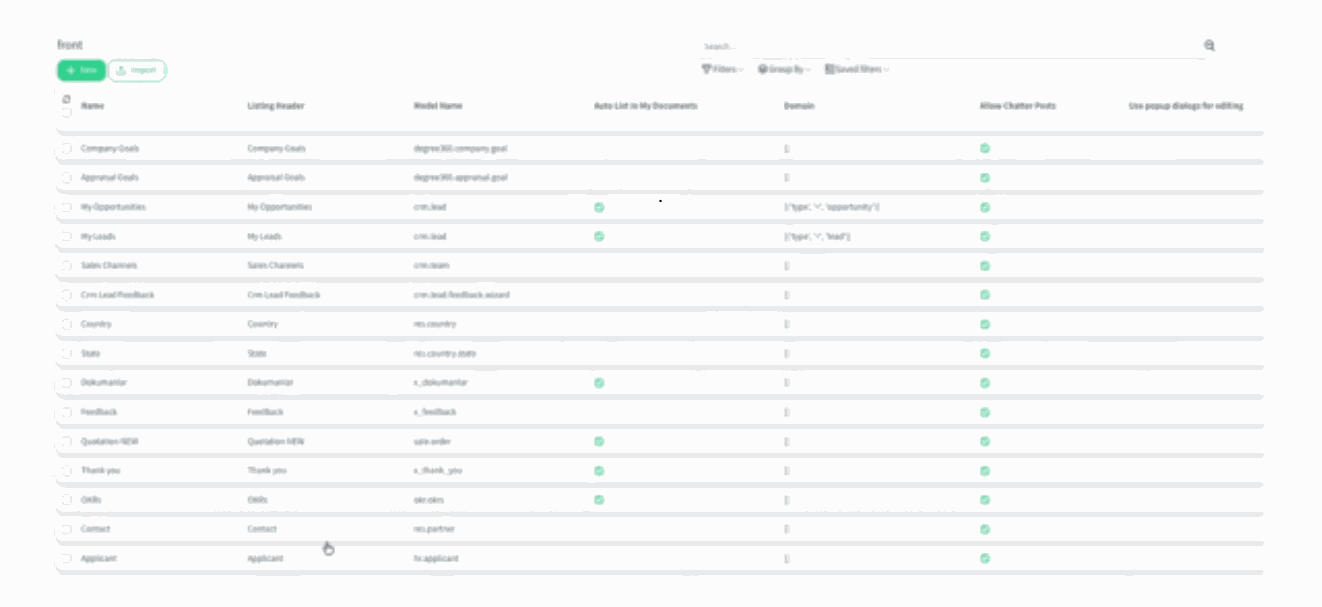
- After configuring embedding, you can review all views that have been opened for frontend access by navigating to Settings App → Technical → Frontend Access Settings.
)%20(90).png?access_token=c21bbf1a-441f-4fdc-b460-45401615173c)
- This centralized list shows each exposed model, its listing header, domain, chatter permissions, and popup behavior — making it easy to verify or adjust your externally accessible pages.
)%20(91).png?access_token=009f193f-3f94-44bc-8085-fdc72519e58d)
- And that’s it! With just a couple of clicks, your App Builder forms, dashboards, or interactive pages can now live directly inside any external website — complete with layout controls and centralized frontend management.