
Overview: Survey creation and output management have been streamlined to reduce complexity and improve usability. This update focuses on simplifying survey administration by improving PDF export behavior and enabling bulk import of answer options — while also decluttering the interface after recent action additions.
Updates:
1. Print Survey as PDF (Action-Based Output):
Print Survey option has been moved from the form header to the Actions menu.
Surveys can now be exported as a printable PDF version, reflecting the survey structure and questions.
2. Import Answer Options from File:
Single-select multiple-choice questions now support bulk option import from Excel or CSV files.
A new Import from File action has been added under the Answers section.
Survey admins can select a column from the uploaded file to automatically populate answer choices.
Benefits:
• Faster Survey Setup: Bulk import eliminates manual entry for long and standardized answer lists.
• More Consistent Outputs: Surveys can be downloaded as clear, printable PDF files, ready for physical or offline completion.
How it works?
- To export a survey:
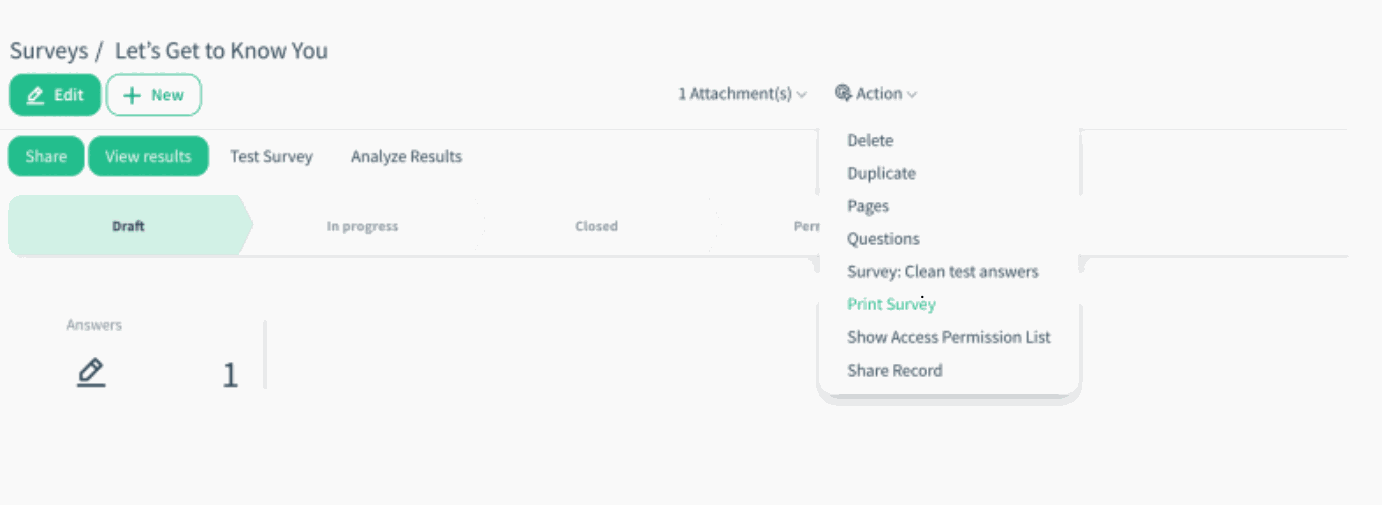
Open the survey and select Print Survey from the Actions menu
The survey is generated and downloaded as a PDF file.
)%20-%202026-02-13T094313.484.png?access_token=2f15cb3b-d958-46b4-856b-c4deb2593ca1)
- To import answer options:
Create or edit a single-select multiple choice question.
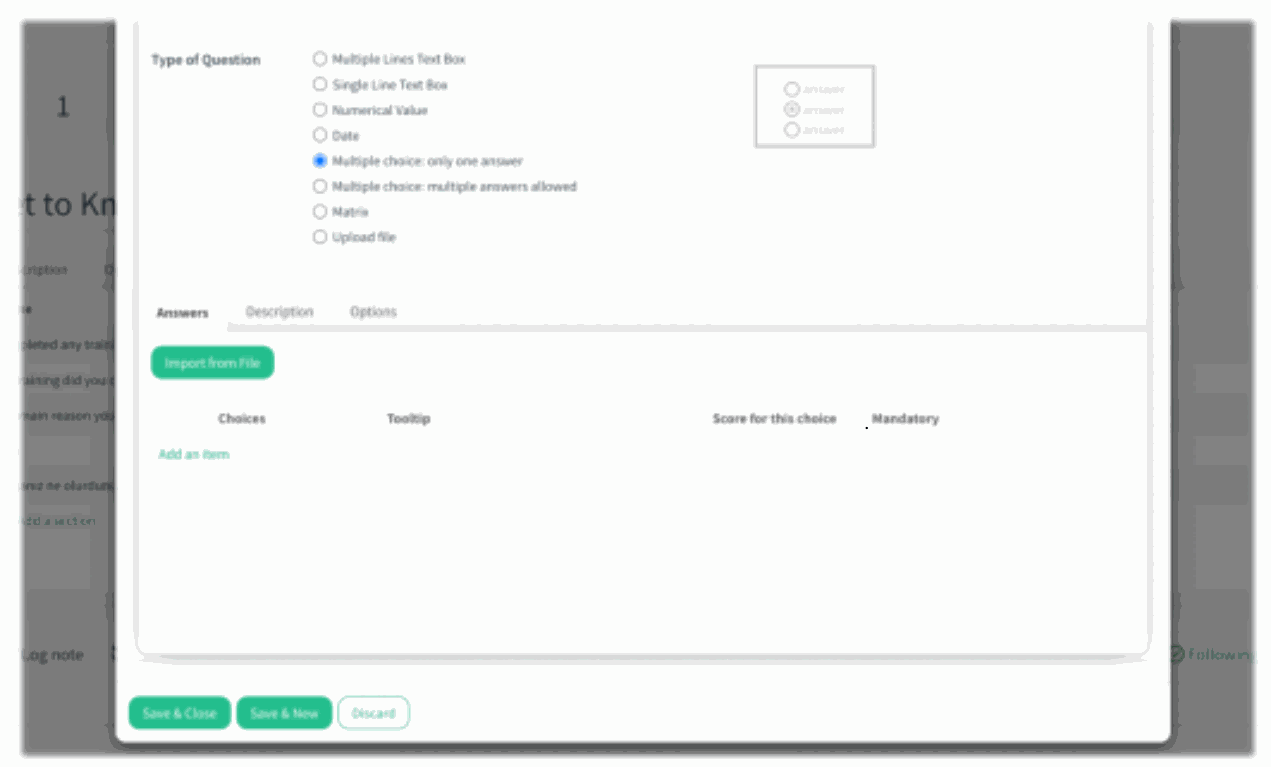
Go to the Answers tab and click Import from File.
Upload an Excel or CSV file.
The file must include columns that match the system’s expected field names. Each column is mapped automatically based on its technical name or label.
Supported column names are:
value → used for Choices
tooltip → used for Tooltip
quiz_mark → used for Score for this choice
is_mandatory → used for Mandatory
After selecting the column that contains the answer values, the system reads the file and automatically populates each row as an answer choice with its corresponding properties.
)%20-%202026-02-13T101507.110.png?access_token=f96733e9-8aeb-4eab-b8df-fb868a115a7e)