
Overview: Surveys can now adapt dynamically based on participant responses. This means your respondents only see questions that are relevant to them, making the experience more interactive and efficient.
Updates:
1.Conditional Display Setting:
A “Conditional Display” checkbox has been added under the question options tab to control when a question should appear.
2. Dynamic Question Flow
Flow: § Questions now automatically appear or stay hidden based on participants’ selected answers — something that wasn’t possible before.
Benefits:
• Smarter Survey Flows: Show only the questions that matter, based on each participant’s unique responses.
• Cleaner Data Collection: Reduce irrelevant answers and gather more accurate insights.
• Better User Experience: Respondents feel like the survey adapts to them — because now it doe
How it works?
- First, go to the Surveys app and create a new survey or open an existing one.
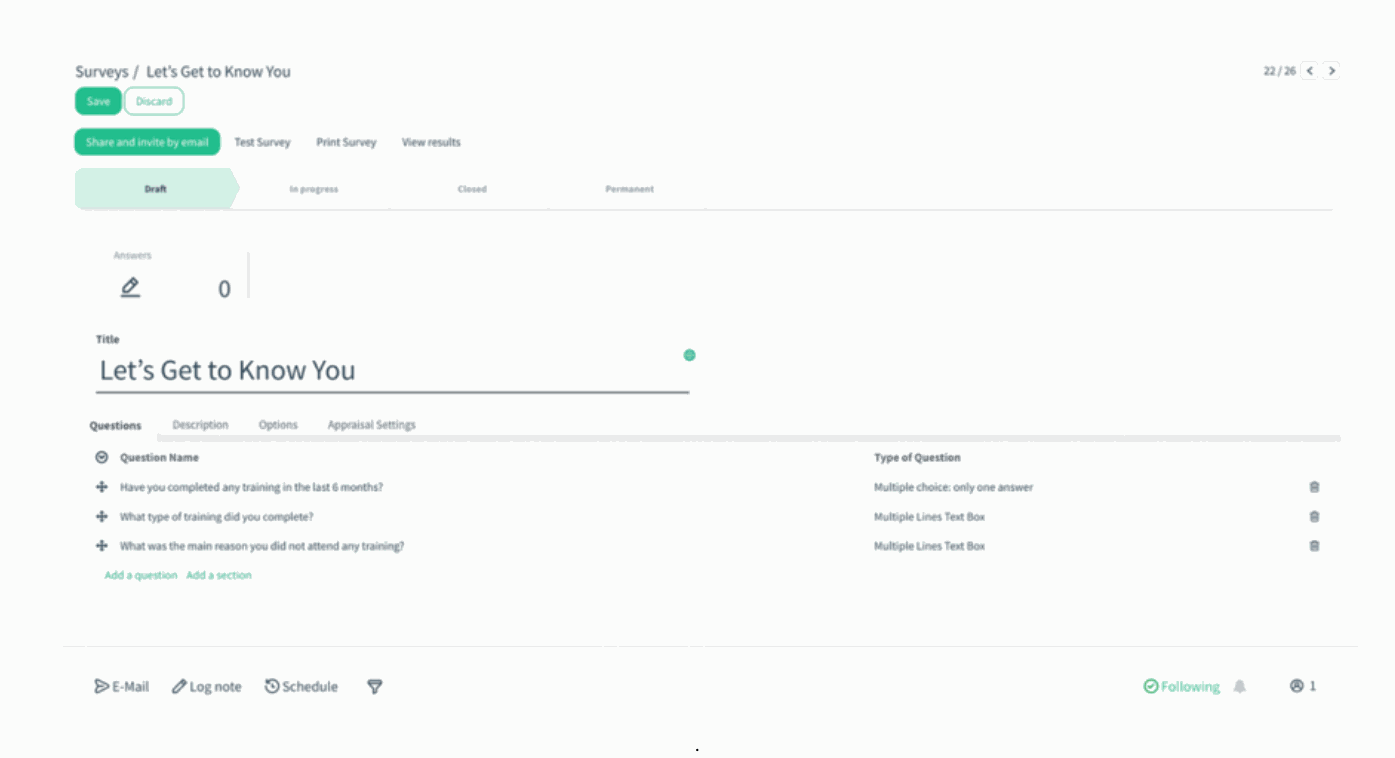
- Add all your questions as you normally would – both your main questions and the follow-up questions that should only appear based on answers.
- In our example:
Q1: Have you completed any training in the last 6 months? → answers: Yes / No
Q2: What type of training did you complete?
Q3: What was the main reason you did not attend any training
)%20(65).png?access_token=ca987fa0-d21d-4d91-b9cc-032f62626b3c)
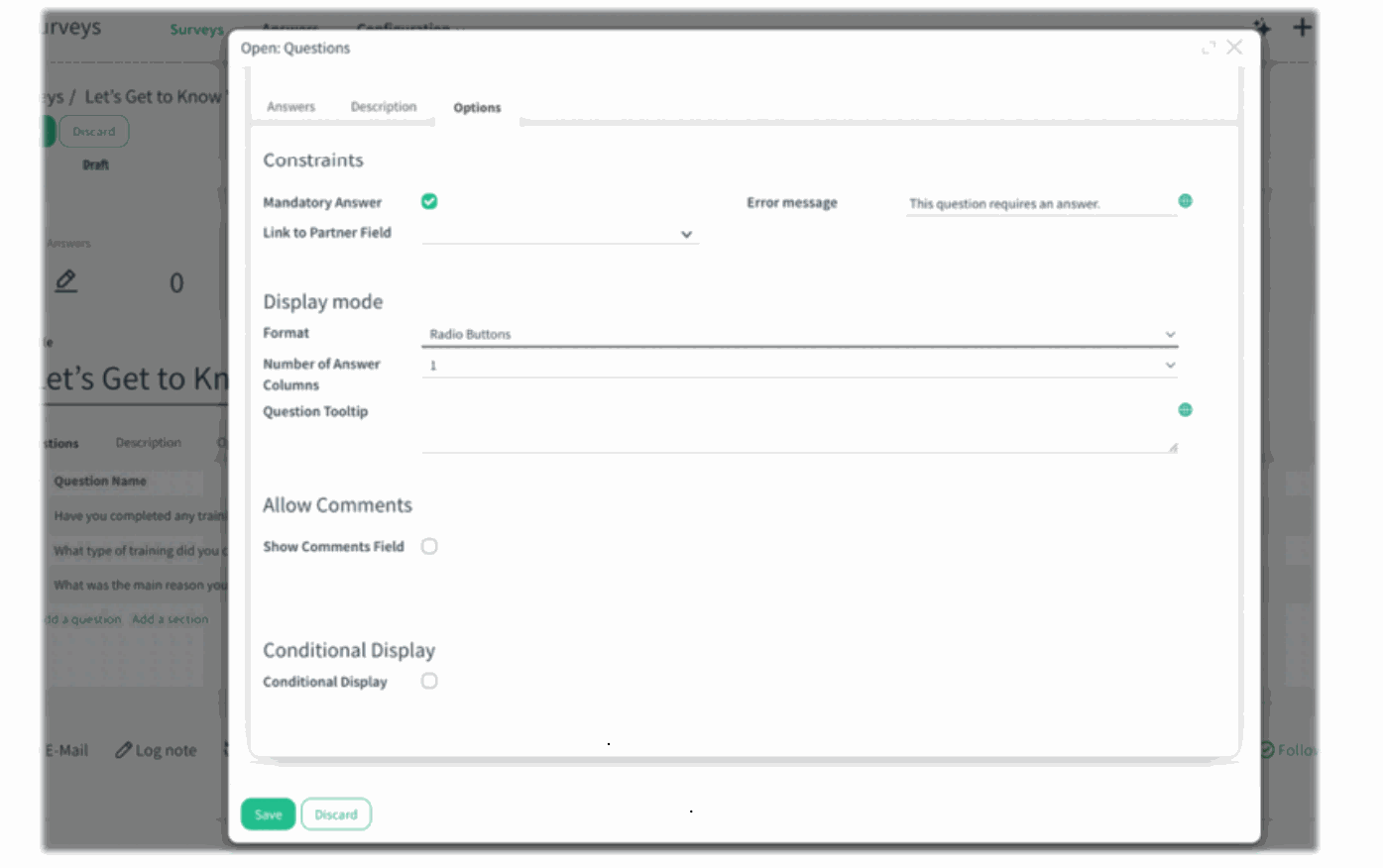
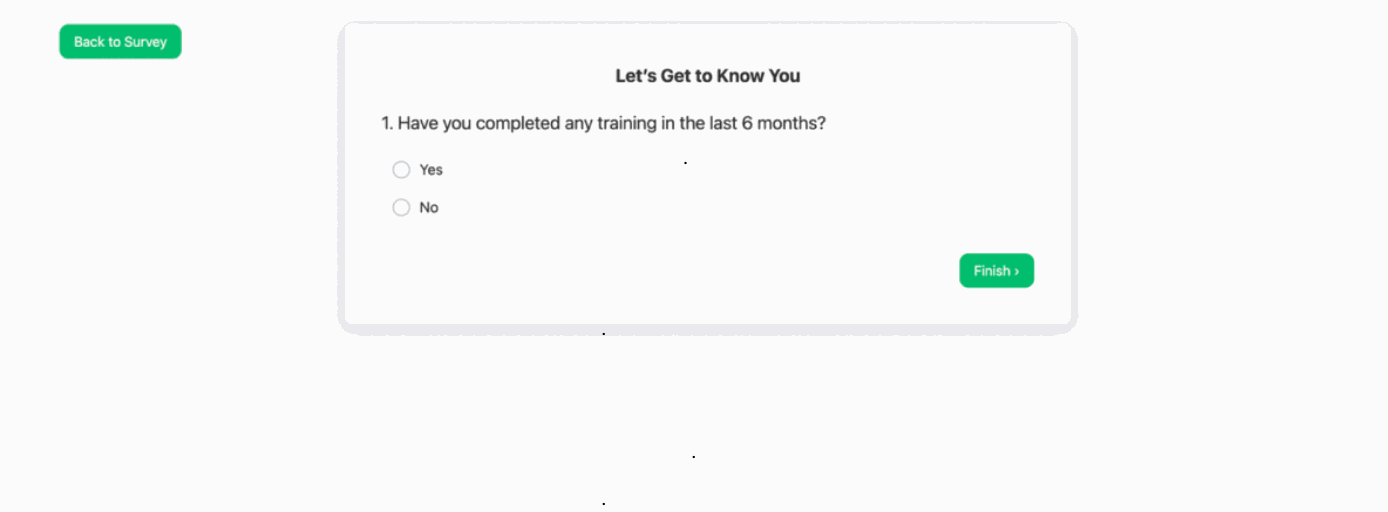
- Keep Conditional Display disabled on your main question. Everyone should see “Have you completed any training in the last 6 months?”, so we don’t touch the logic here.
)%20(66).png?access_token=a04a4afc-3066-4925-bce9-0468129cf439)
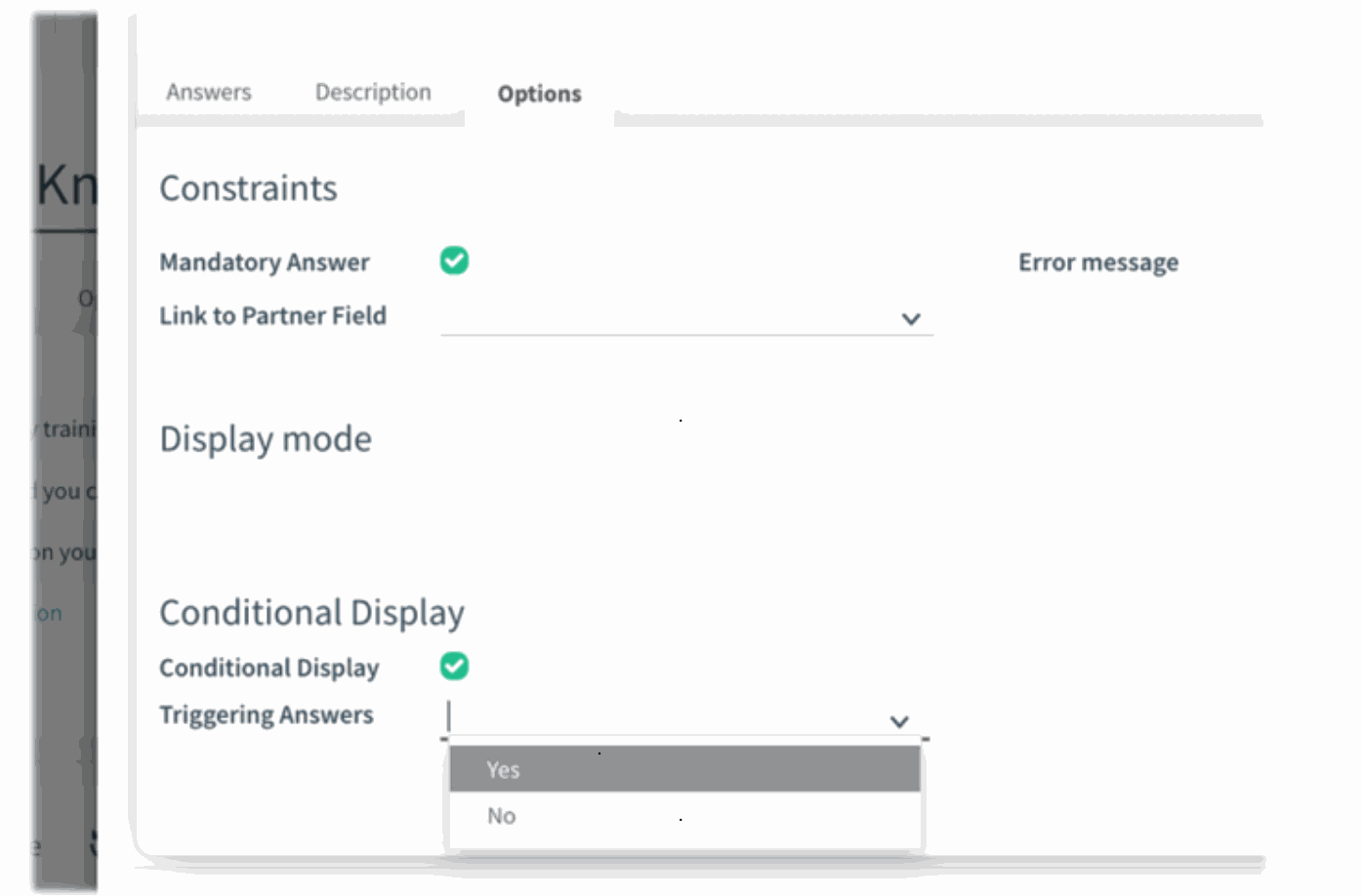
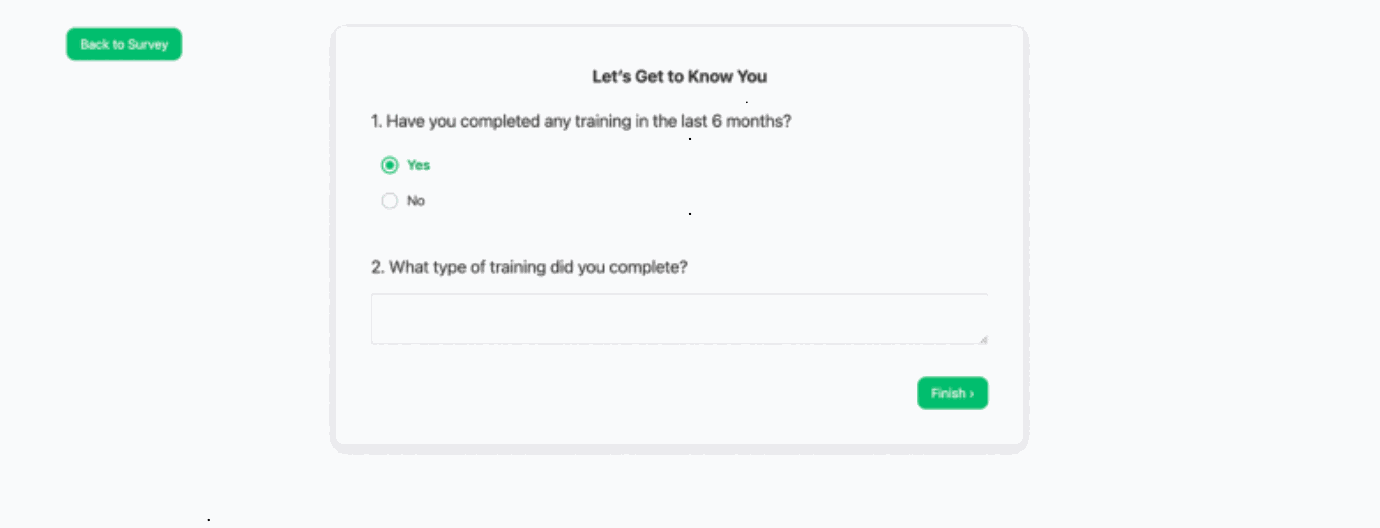
- Now open the secondary question that should only be shown when the answer is Yes. In our case, that’s “What type of training did you complete?” Go to the Options tab, scroll down to the Conditional Display section and: Enable Conditional Display. In the Triggering Answers dropdown, select Yes.
)%20(67).png?access_token=6118f4d5-b1fd-4ef8-bbe6-1faf60f407bc)
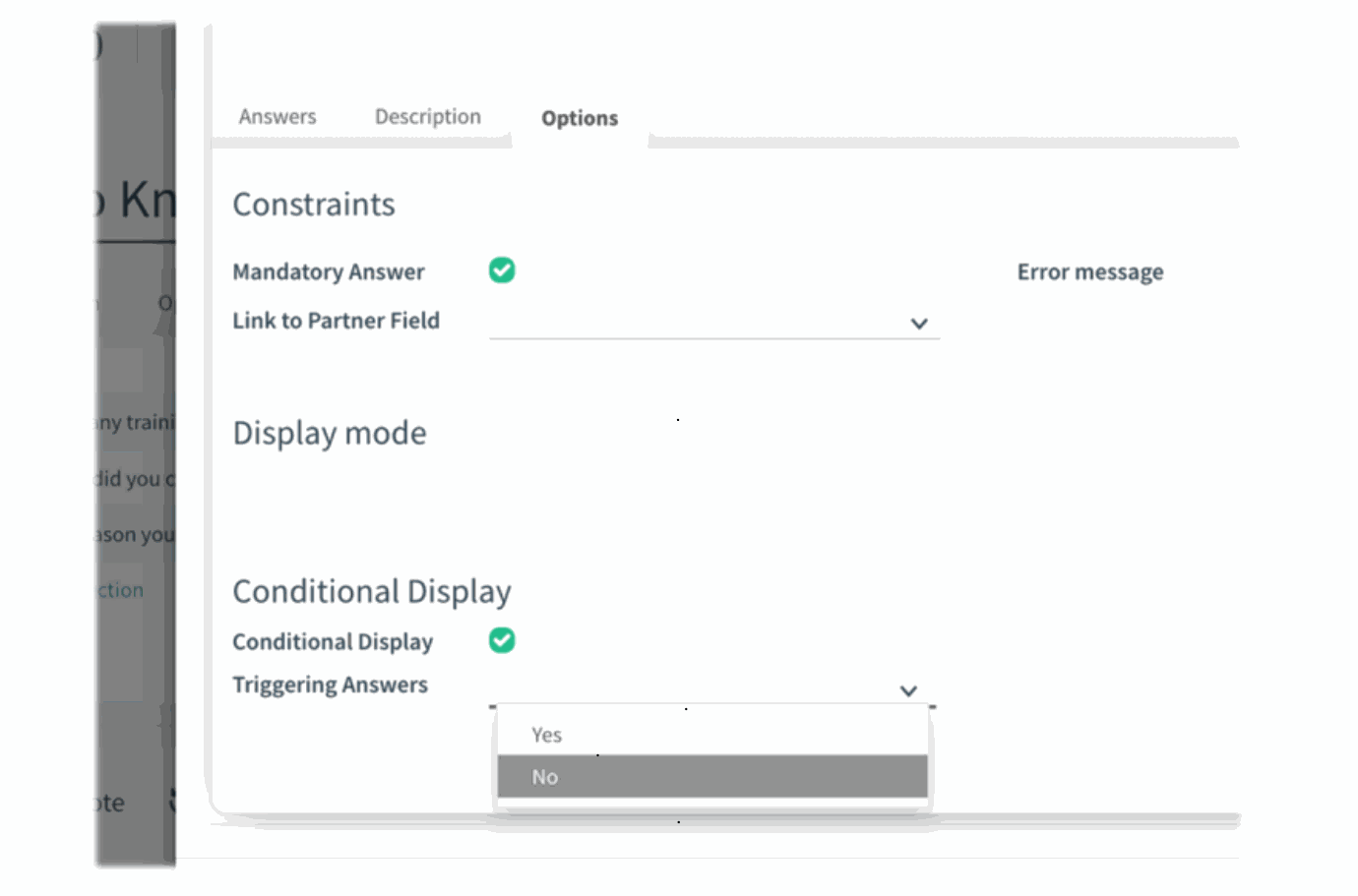
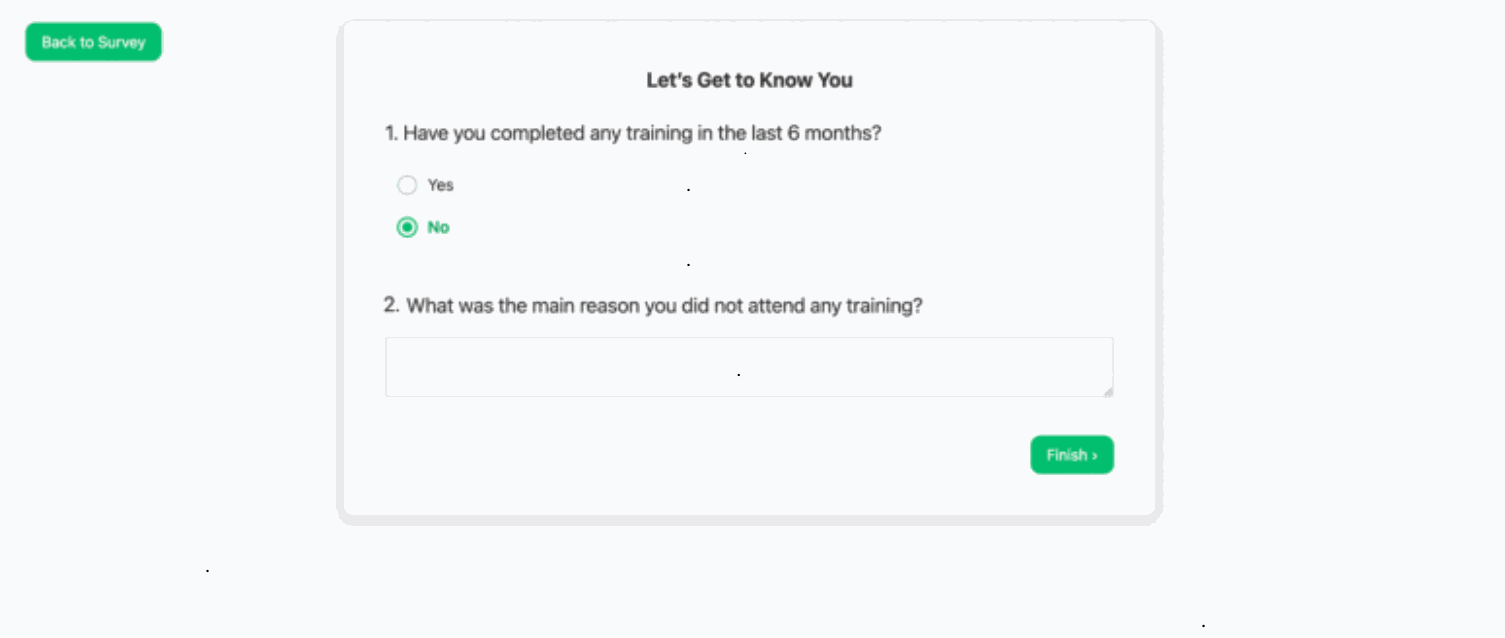
Next, open the question that should only appear when the answer is No. That’s “What was the main reason you did not attend any training?” Again, go to the Options tab, enable Conditional Display, and this time choose No in the Triggering Answers dropdown
)%20(68).png?access_token=25c83d49-fe85-401e-b10f-e362211bf891)
- Save your changes and test the survey.
)%20(69).png?access_token=1835b22b-39fb-4202-a5e0-271aa869227d)
- Try answering Yes to the first question – ta-da! you’ll see “What type of training did you complete?”
)%20(70).png?access_token=65a327ba-67f5-4997-a6bd-e03eb3646191)
Answer No instead – now the “What was the main reason you did not attend any training?” question appears.
)%20(71).png?access_token=e6c3b0d7-5280-41b4-a950-afa1fc7f43cc)
Anyone who doesn’t choose those answers never sees the follow-up questions, so the survey feels smart, clean, and perfectly tailored to each respondent.